
Conducting UAT and Hidden Features of Page Scripting
In this blog post, we’ll explore how to effectively conduct UAT in Business Central and unlock the hidden features of Page Scripting.
User Acceptance Testing is a critical step in the software development lifecycle. It involves end-users testing the software in real-world scenarios to ensure it meets their needs and expectations. The main objectives of UAT are to:
- Validate Business Requirements: Ensure that the software performs as expected according to the business requirements.
- Identify Bugs and Issues: Detect any defects that may have been missed during earlier testing phases.
- Ensure Usability: Verify that the software is user-friendly and intuitive.
- Confirm Readiness for Production: Ensure that the software is ready for deployment and use in a live environment.
Key Steps in Conducting UAT in Business Central
Define UAT Scope and Objectives
- Identify the key functionalities and processes that need to be tested.
- Set clear objectives for what the UAT aims to achieve.
Best tips for that:
- Start Small and Scale Gradually (Begin with simple tests and gradually increase complexity)
- Collaborate with End-Users (Involve end-users in the scripting process to ensure that scripts accurately reflect real-world scenarios)
- Maintain and Update Scripts (Regularly review and update your scripts to ensure they remain relevant and effective)
- Focus on Usability (Ensure that scripts are easy to use and understand, even for non-technical users)
Develop UAT Test Cases
- Create detailed test cases based on user requirements and business scenarios.
- Ensure that test cases cover all critical functionalities and edge cases.
Prepare the UAT Business Central Environment
- Set up a testing environment that mirrors the production environment.
- Ensure that all necessary data and configurations are in place.
Execute Test Cases
- Involve end-users in executing the test cases.
- Use Page Scripting to automate repetitive and complex test scenarios.
Creating simple UAT and exploring hidden features trough examples
When Business Central environment is open, you can find Page Scripting functionality in Settings:
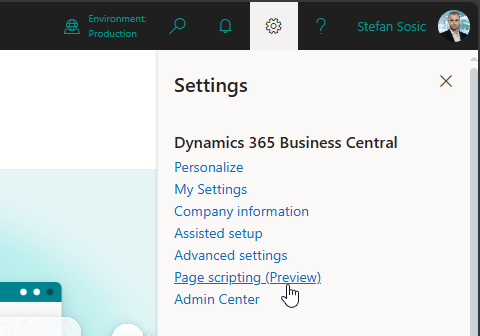
New side panel is shown:
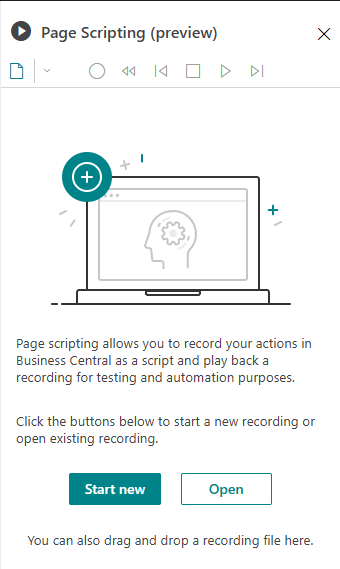
By clicking “Start New”, you will automatically start recording of new UAT:
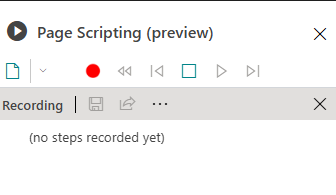
Let’s create simple UAT of creating Item:
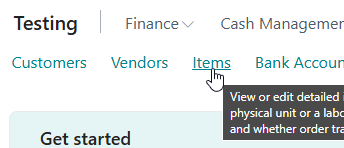
Once clicked from Role Center to go to Item Page:
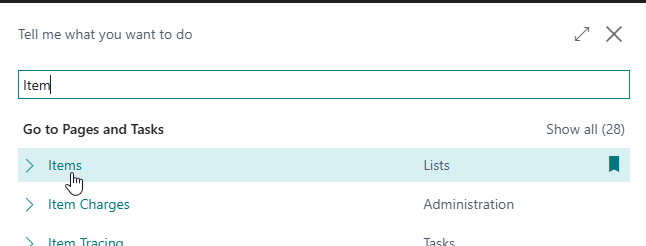
or searched:
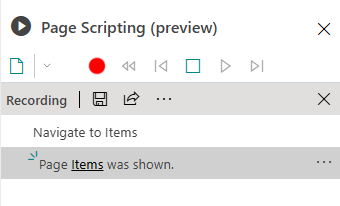
Navigation to Items page will automatically be logged and displayed in Page Scripting windows so you can track steps:
While recording is still active you can click on Three dots on UAT line:
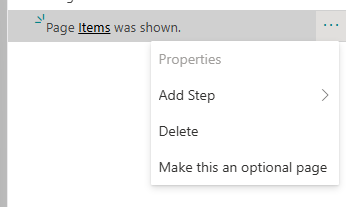
You will be able to Delete that line if you made an error and clicked or inputted something which you wouldn’t include in your UAT, make page optional (not applicable on this test which we are currently making, but will be explained later), and Add Step where currently there is only Wait action.
From doing some tests, I would recommend using Wait action after page opening, especially if there is on page background loading. Sometimes UAT goes too fast and next lines result and false error.
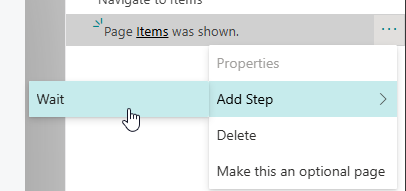
After added, Wait line will appear and also Properties for it will open:
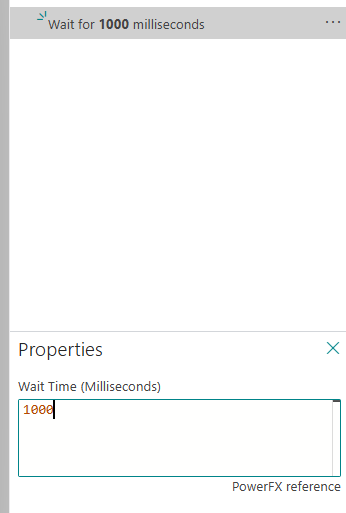
Here you could define for how long to wait, by default its 1000ms (1 second).
Let’s move forward and create new Item:
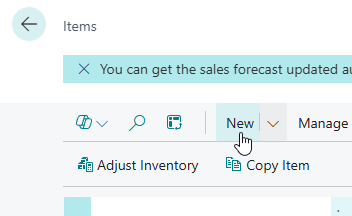

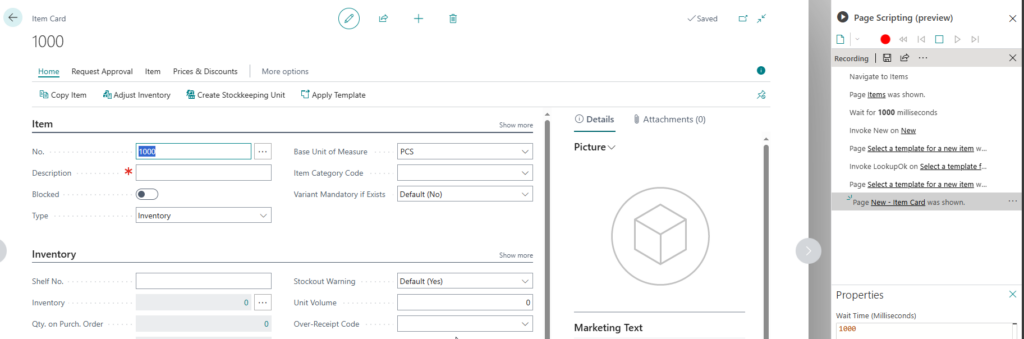
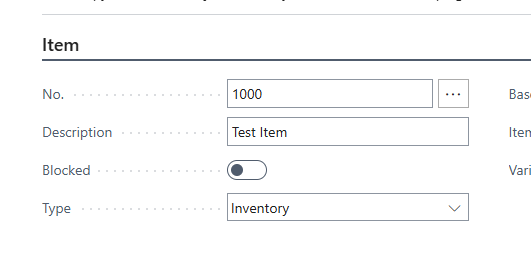
Item No. is populated and if you would like to validate it, correct step would be to input Description, it will trigger validation of No. and you can afterwards validate Item No.
For input of Description you can simply type the value:
And once you validate it by leaving that field new line in Page Scripting will be created:
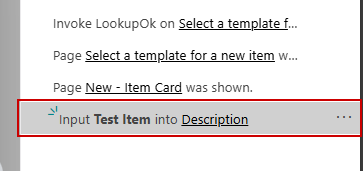
If you need random Description you can use here PowerFX procedure RandBetween(start,end).
So opening properties of this line:
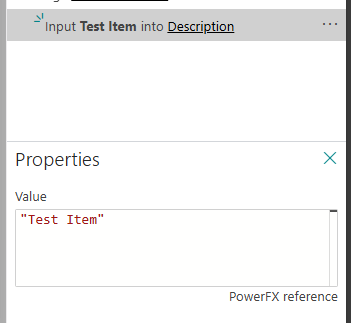
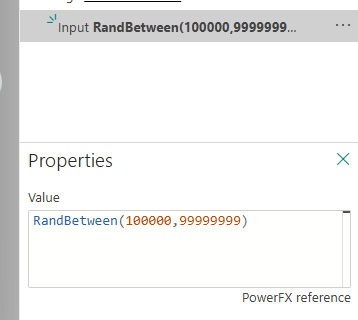
And replacing it by procedure RandBetween:
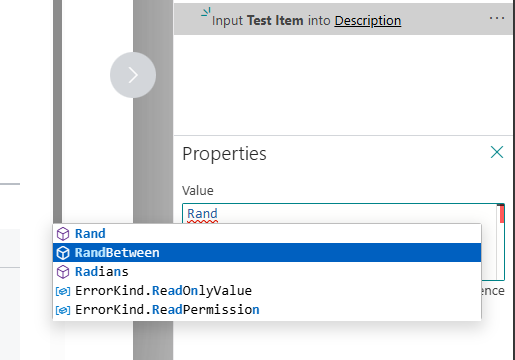
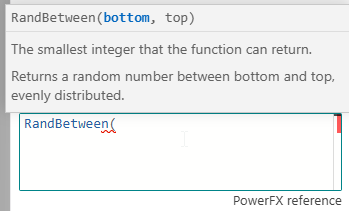
By Crtl+Space there IntelliSense will appear also, if you open parenthesis it will also show you parameters of method:
Now step is edited:
If we run this step only:
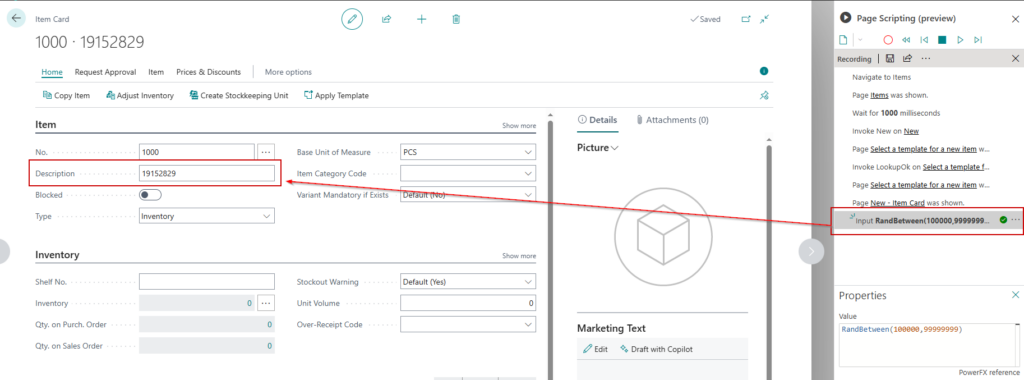
Description gets new numeric random value, let’s make it even more complex:

In order to add prefix in front of random number you would need to use Concatenate method. Now we get what it seems to be realistic Item Description.
You can find more PowerFX methods on: Formula reference – Power Apps – Power Platform | Microsoft Learn
Let’s move back to validation of Item No., if you would like to validate the content you would need to right click on the field and then select Validate > Current value > is xxx.

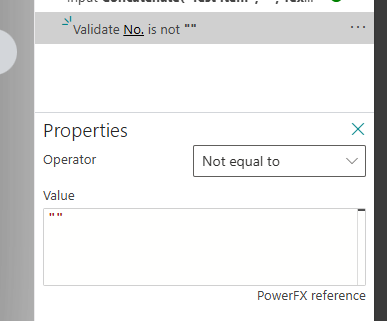
Here down-side is that you need to select “is XXX” in order to add line in Page Scripting and than you can edit it further with more options:
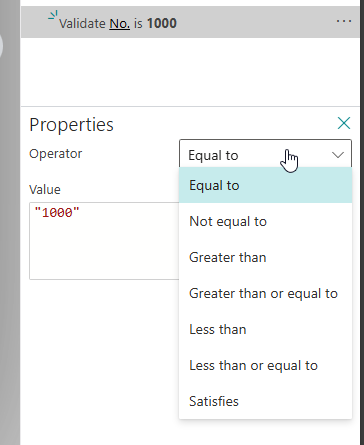
What I would validate here is that No. Series worked fine, and that No. was automatically pre-filled:
Value Storage
One important method from PowerFX was missing and that is Set or SaveData, with it you would be able to set value of global variable, which temporarily holds a piece of information, such as the number of times the user has selected a button or the result of a data operation.
What to use instead?
Clipboard
As you may have noticed, there is Copy/Page PowerFX action which are supported:
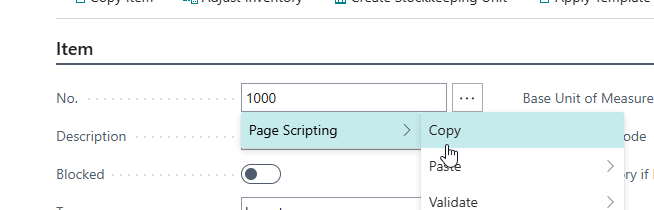
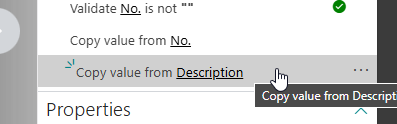
By copying it will be available during UAT, even on different pages and with multiple values copied. Let’s copy multiple fields:
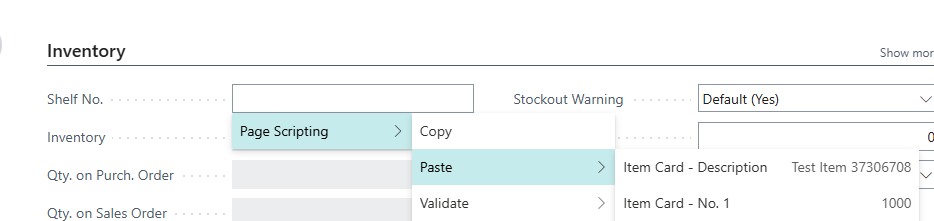
Trying to Paste:
Showing the use cases now in next points.
Editing value in field
We have Description with trailing white space:
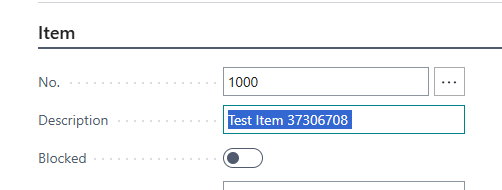
First, save it on Clipboard storage:
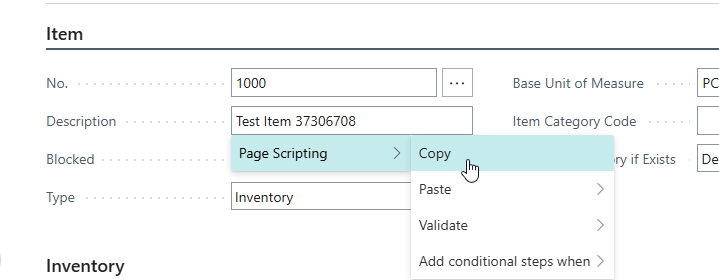
Then do Paste to same field and open properties:

Shows like this:
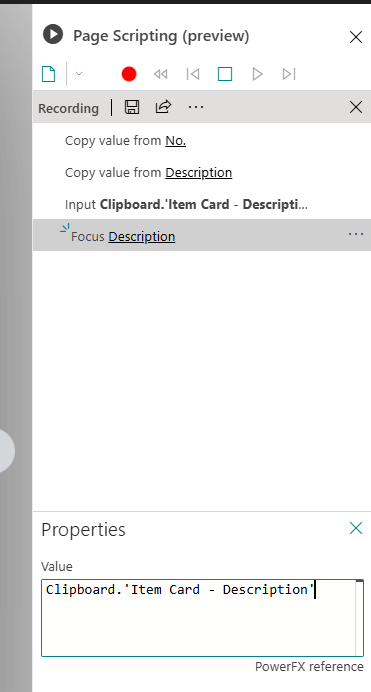
Here you can also play around and pull from storage by accessing Clipboard, it’s in format Page Name + Field Name:
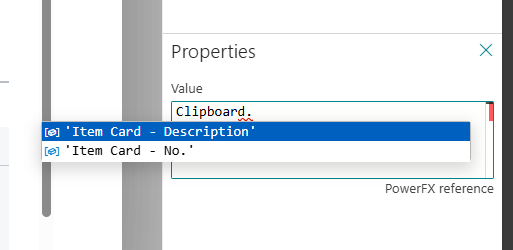
But we want to remove white space from Description:
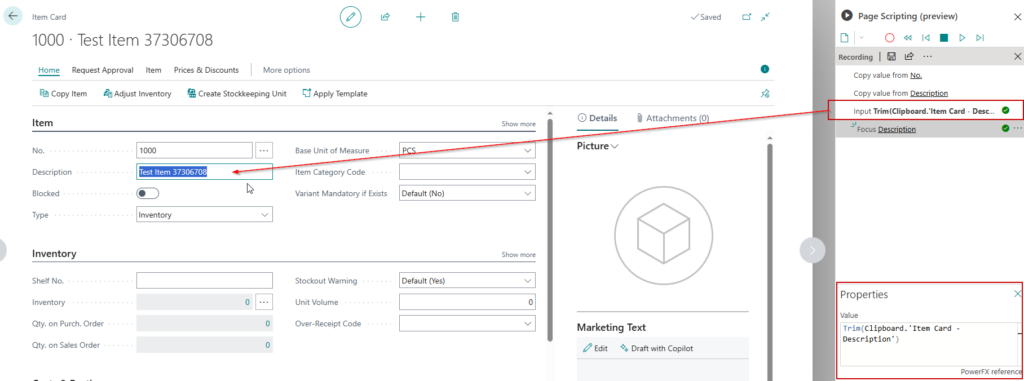
There are lots of PowerFX methos which can be used, this is just example to show how to modify existing value.
Cross-Page Value
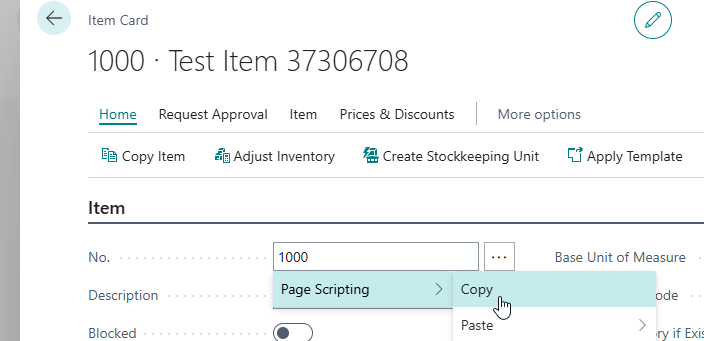
Let’s take Item which we created earlier and copy Item No. from the page:
Go to Sales Order Page and add Sales Order Line by type of Item, try to Paste:
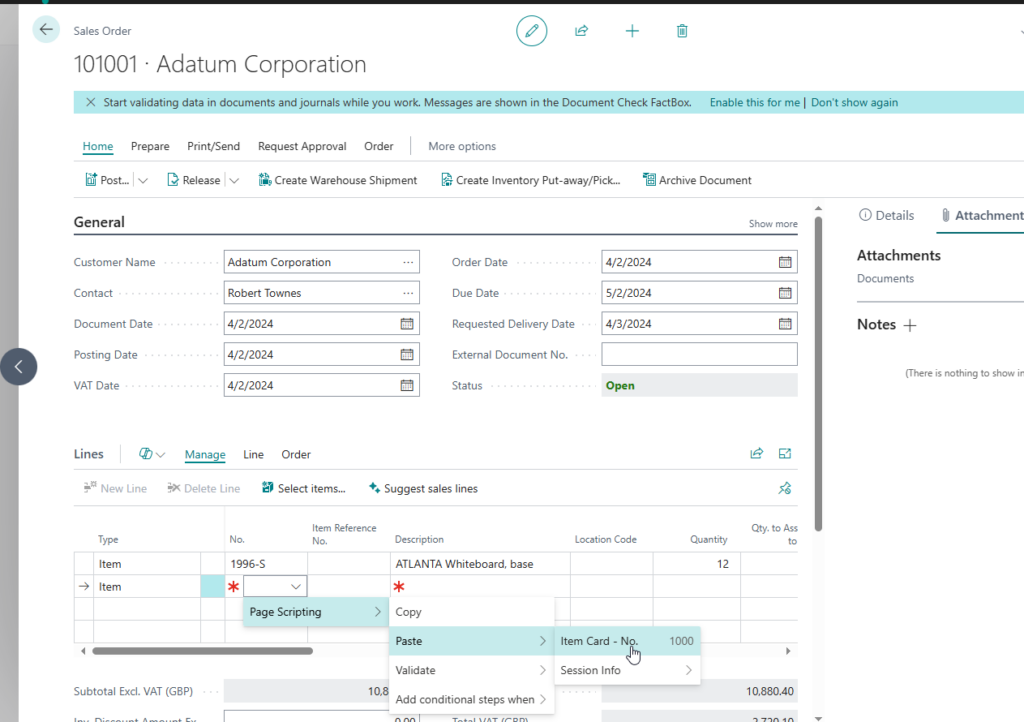
You will see value from Item Card, field No. that can be Pasted to Sales Order Line – Item No. field.
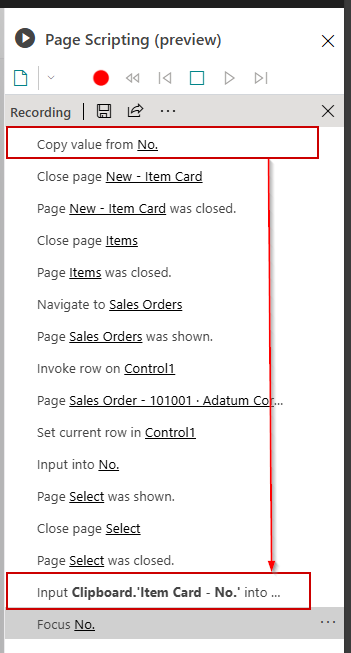
Here you can see cross-page transfer by Clipboard.
On same way you can do Copy and by Pasting editing the value without editing reference from which we copied from.
Custom Validation Hack
You are very limited when we speak about validations and checks, but there are currently workarounds.
If we validate Sales Order Item No. to it’s value:
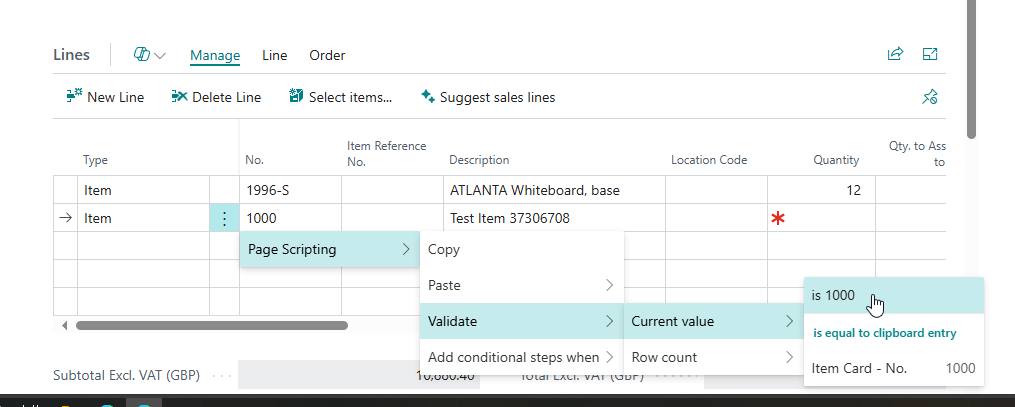
Go to properties:
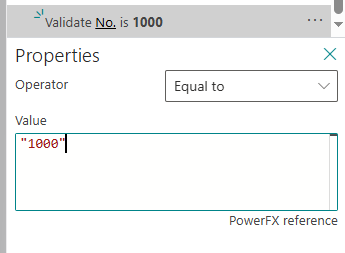
Here we could use IfError to do validations:
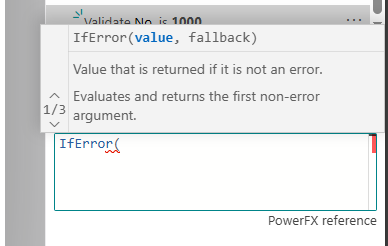
Again, most common would be to store to storage of Clipboard than to do validations here, since Clipboard is Text always, you will need to do conversion with Value method:
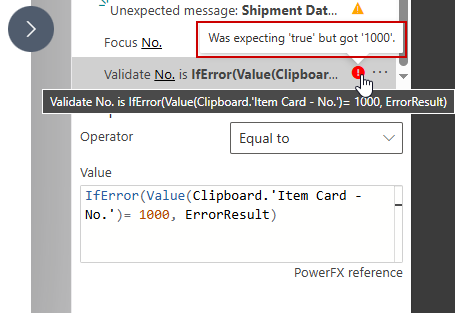
Still, we get and error since IfError returns check result, we need to add additional If here:
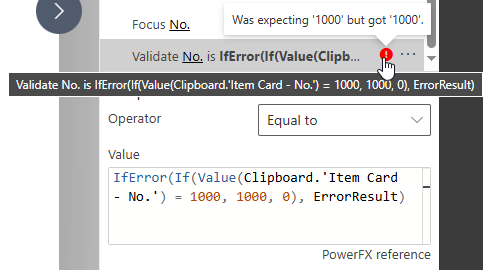
Now we gets the value 1000 but it doesn’t match?!?!
Even though all is displayed same, problem is with formatting, as said before most of the things are working from Text and you would need methods to do the conversions:

We can simply add Text method and 1000 as parameter to match if success.
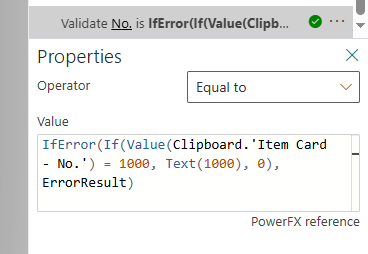
Now all is good!
You could do same with Add conditional steps when :
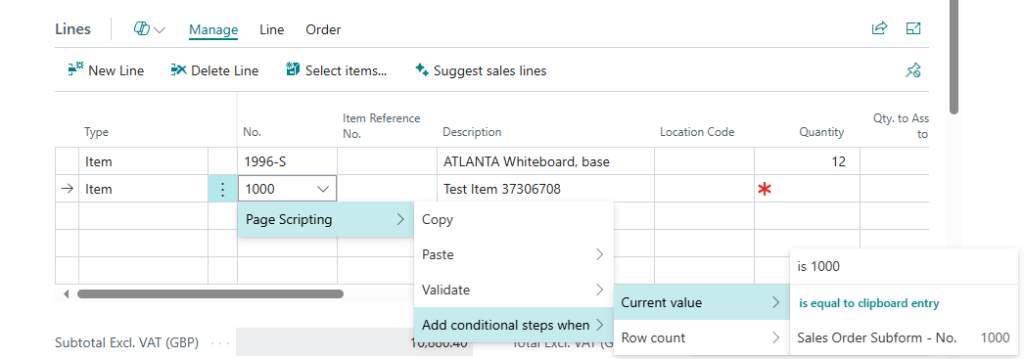
Here you would be able to do custom validations on same principle and extend possibility of conditional steps.
Saving Page Scripts
Each of scripts which you created can be saved and makes sense to do. Since you will be spending some time creating good scripts. And in order for you to use it later multiple times or share it, you will need to save it:
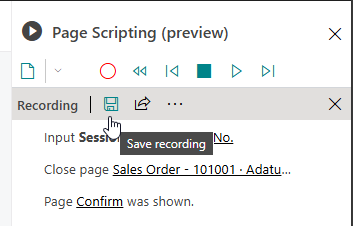
By pressing Save Recording:
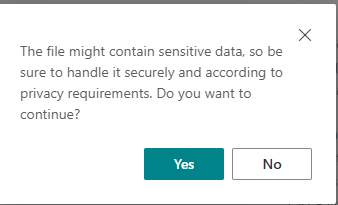
It will first ask you to confirm save, since it could contain sensitive information if you have not used demo data, but instead, used client’s production data.
Upon confirmation:
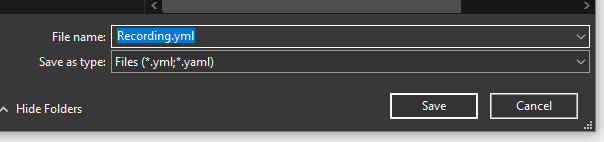
You would just need to name it and save it!
Later on when you want to use it you would just use Open recording... button:
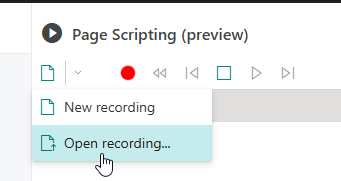
And it will load up saved version.
Saved version in Yaml is pretty readable:
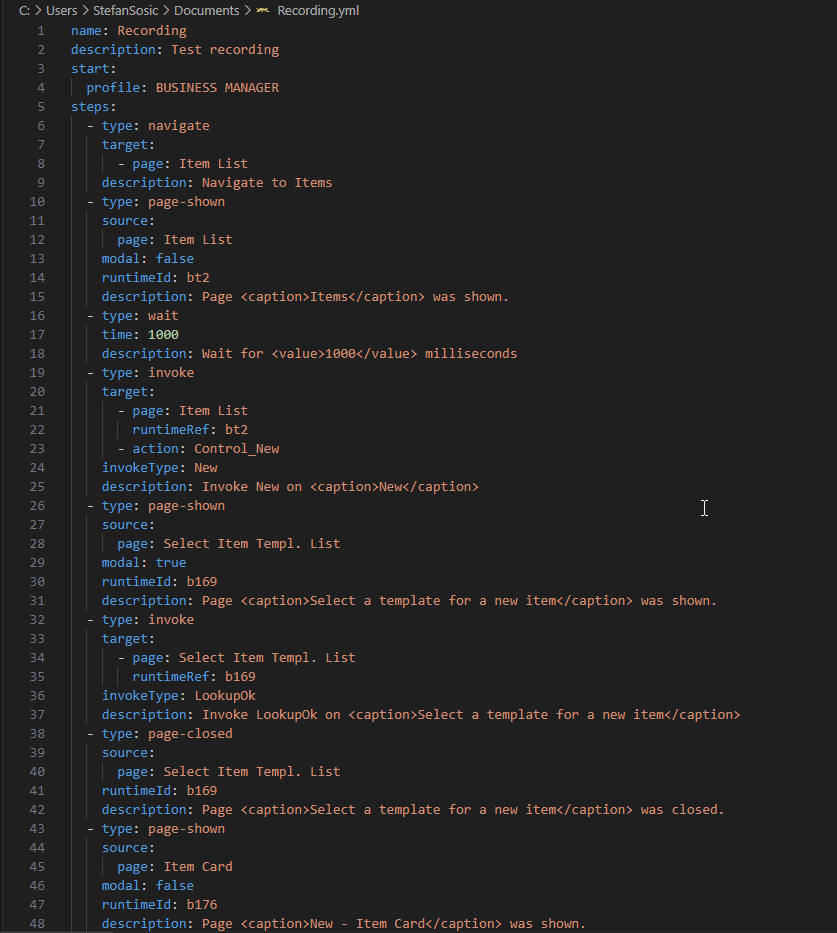
Here you can also edit the script without Business Central, it’s not that hard as it seems to be.
Additionally, you can share in same environment link of the script:
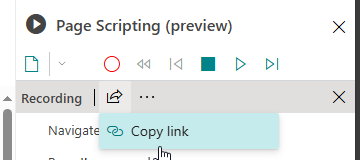
You can share it with your colleagues, and they would be able to reproduce quickly some error, create an example multiple times without you being assisting them and many more use cases.
URL Share to Cross-Environment or Company
Link is base64 encoded, containing Page Scripting steps, zipped and encoded:
https://businesscentral.dynamics.com/Production/do?dc=0&company=Testing#open-replaylog=H4sIAAAAAAAAA7VVUW-bMBB-z6848ZRICSF76FREI7VdNUXq2JSk6-PkwSWzYmxkm2T797MNBDKykkwaEhI-33333Xdnw0mGISwxETKlfDtQmkgdDgByKTaUmb2Hl9Uiflqt4NN9fP_xaWlcMFfWZQL6V248ONnTLdFoTAAmfosOwT4TyMnWuCw0ZvBMlXb2FFUiaa6p4CHEVTRo4dxUC9kGT9QPceAuTolCJlhjn0POREpYCBvCVElHFlzTDBdpCN_1u272LwYEooS45dzlj6b1Eg5EgUvvt0gdCC2TWeAQZkEQdHFfjRNshIRoT1iBc-sVTctvyChjVBnNedqulvK92F2uYqu8JW6a-qw_SUoaj4JrKdi3GA9ur0yxdulq2wnvhXOweyB4I4xZN7Jc16AVMkx0yX2NWc78Tru0LLrdmt3c9rWrgiagLa6dIas4AW7YU2Pr62Sv4G9x78hfE25r_CzErsg_7_4qdO1wovbldf3ZioQJhek_9eL_al8S868bHcfzkci0_2zP3t_0MbYzPWkw-4cjL3TfYTyS605DRcgGbCgyQ_JDw81tudsghDtzSBMjIDfv0FujKhvkjT3wxqZNP_VwSXj6gPqAyIf2JgmC8W31jEajc8NluNdXz1vwFcULkhwvL8q1qMKO0rYqOzubJpSmF_whrpIzFv6JjJ7nliJHSUoZonlXmq8VldZcCL81C9Exfk4VcKGjaWOp6y6l8LxalMFJCqexPP5SfwPMph5FYwcAAA&zip=1&base64=1
Then I will change Environment and Company and copy only this part:
/do?dc=0&company=Testing#open-replaylog=H4sIAAAAAAAAA7VVUW-bMBB-z6848ZRICSF76FREI7VdNUXq2JSk6-PkwSWzYmxkm2T797MNBDKykkwaEhI-33333Xdnw0mGISwxETKlfDtQmkgdDgByKTaUmb2Hl9Uiflqt4NN9fP_xaWlcMFfWZQL6V248ONnTLdFoTAAmfosOwT4TyMnWuCw0ZvBMlXb2FFUiaa6p4CHEVTRo4dxUC9kGT9QPceAuTolCJlhjn0POREpYCBvCVElHFlzTDBdpCN_1u272LwYEooS45dzlj6b1Eg5EgUvvt0gdCC2TWeAQZkEQdHFfjRNshIRoT1iBc-sVTctvyChjVBnNedqulvK92F2uYqu8JW6a-qw_SUoaj4JrKdi3GA9ur0yxdulq2wnvhXOweyB4I4xZN7Jc16AVMkx0yX2NWc78Tru0LLrdmt3c9rWrgiagLa6dIas4AW7YU2Pr62Sv4G9x78hfE25r_CzErsg_7_4qdO1wovbldf3ZioQJhek_9eL_al8S868bHcfzkci0_2zP3t_0MbYzPWkw-4cjL3TfYTyS605DRcgGbCgyQ_JDw81tudsghDtzSBMjIDfv0FujKhvkjT3wxqZNP_VwSXj6gPqAyIf2JgmC8W31jEajc8NluNdXz1vwFcULkhwvL8q1qMKO0rYqOzubJpSmF_whrpIzFv6JjJ7nliJHSUoZonlXmq8VldZcCL81C9Exfk4VcKGjaWOp6y6l8LxalMFJCqexPP5SfwPMph5FYwcAAA&zip=1&base64=1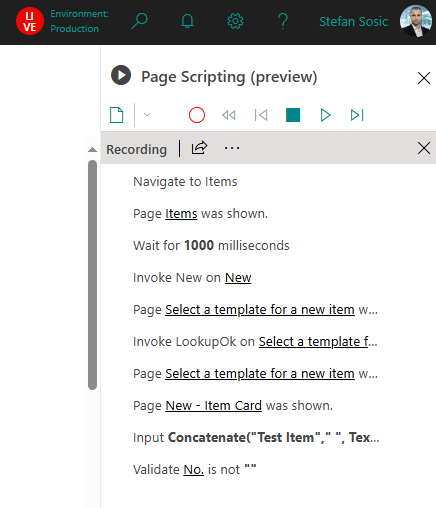
So, same script opens up in different environment and different company. Meaning, that you could have just URL collection in some document to share and not each of the Yaml files. I thought about limitations and did tests, so far created some big Page Scripts and wasn’t able to break it, which is a good thing!
Generally, you would be able to do same; by copying second part of the link to your environment you will get same script on your side. Script was just recoding of first example with Concatenate method.
What’s missing in Page Scripting?
Currently I think this is just beginning as it also says that it is Preview feature. Lot of features in my opinion which should exist are currently not available but doesn’t mean they won’t be coming.
Missing features:
- Creating suite from multiple recorded Yaml files/ UAT Tests from UI
- Extending number of supported Power FX functions (even though it says it supports Power FX and there is link to formula reference page in Docs, not all are supported
- There should be execution duration of UAT tests
- Error validations (currently when error happen during validation, you are not able to validate it and UAT step also returns success, even though there is an error notification on screen, only if there is an Error message strictly, than it shows up in Page Scripting as Page Error)
- F5 (Refresh page) missing, especially when error happens after validation, in order to continue you would refresh current page
One good picture about Microsoft being aware of some of the things:
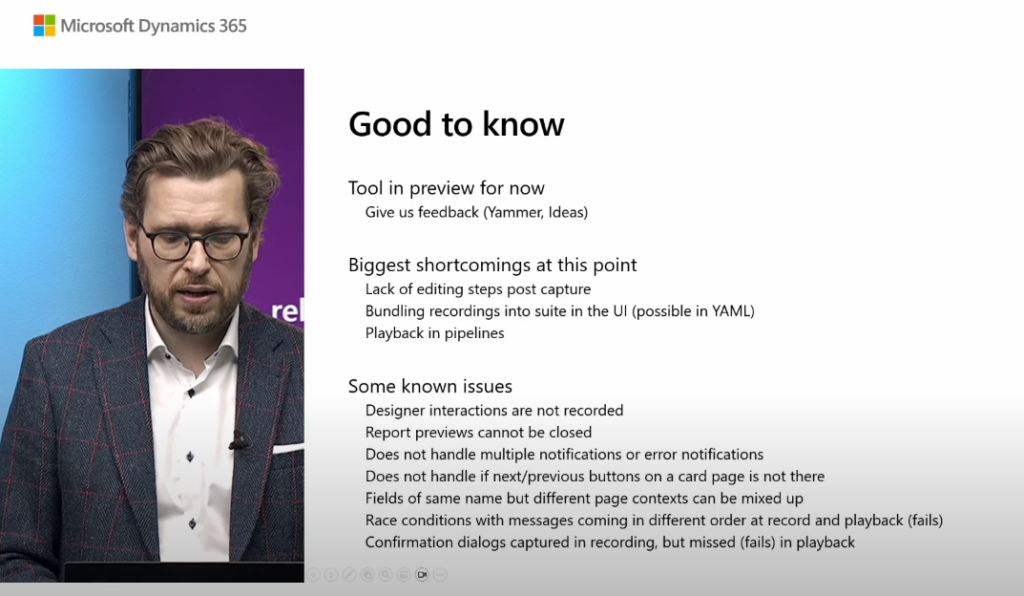
URL to video: In preview: User acceptance testing with the Page Scripting tool (youtube.com)
Until these features are added we could still use this tool for reproducing issues, creating learn scenarios, and creating basic UAT’s.
What’s next?
In next blog post about Page Scripting we be covering designing different types of Page Scrips, and some more “hacks” will be included.
We will be using all the knowledge what we covered in:
Prerequisite for Business Central Page Scripting – Stefan’s BC Blog (ssosic.com)
And current blog post, to create UAT’s, create error reproducing scripts, demo data creation and demo process capturing for learning business processes.
Stay tuned!