

Filter Limitation / Max Number of Parameters in SQL Query in Business Central
When working with Business Central, especially in scenarios involving complex data filtering, it’s crucial to understand the limitations imposed by SQL Server on the number of parameters in a query.
The Limitation
SQL Server has a hard limit on the number of parameters that can be passed in a single query, which is 2100. This limitation is particularly relevant when dealing with dynamic filters in Business Central, where the number of parameters can quickly add up.
Practical Example
Consider the following standard Business Central code snippet:
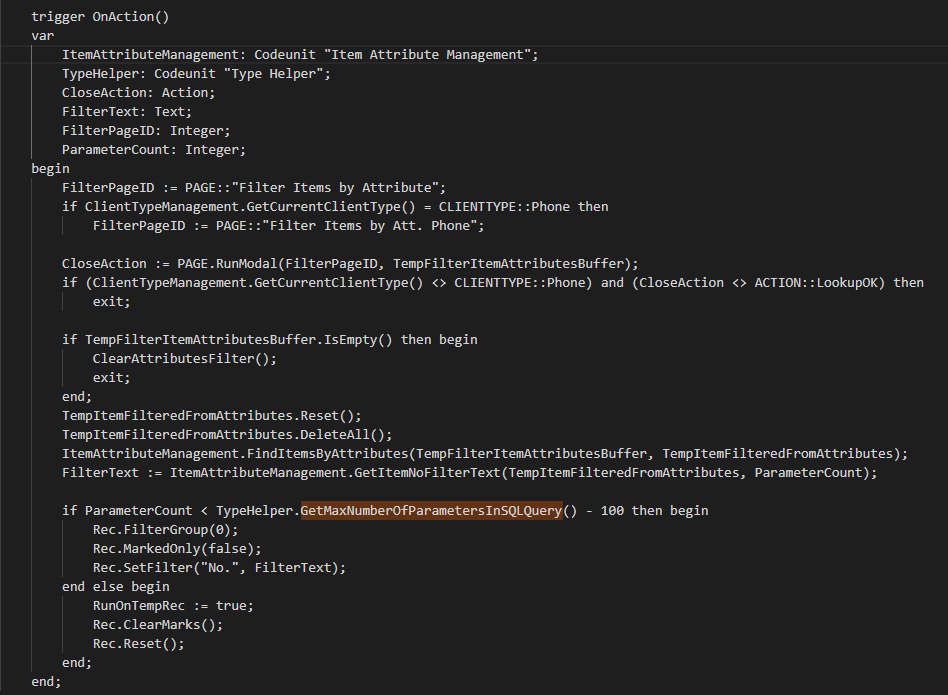
In this example, the code dynamically generates a filter based on item attributes. The ParameterCount variable keeps track of the number of parameters used in the filter. If this count approaches the SQL Server limit of 2100, the code switches to a different approach to avoid exceeding the limit.
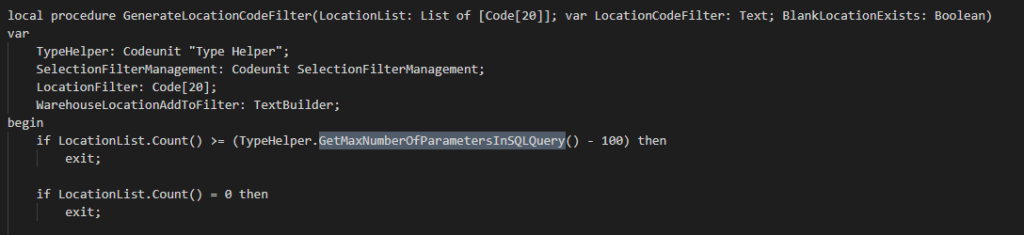
Or next example:
Why This Matters
Exceeding the maximum number of parameters can lead to query failures, degraded performance, a Run Time Errors. By understanding and respecting this limit, you can ensure that your Business Central applications run smoothly and efficiently.
Testing
Let’s create large Customers Filter:
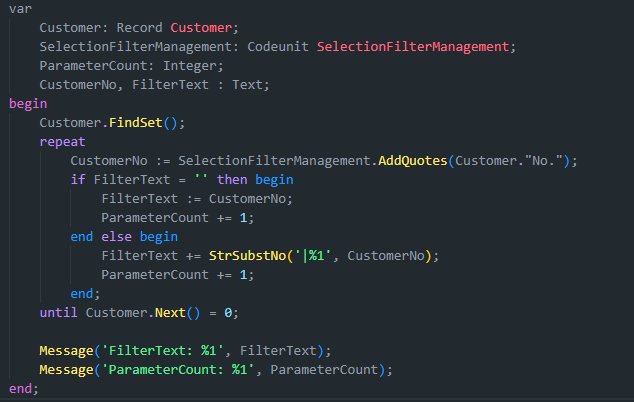
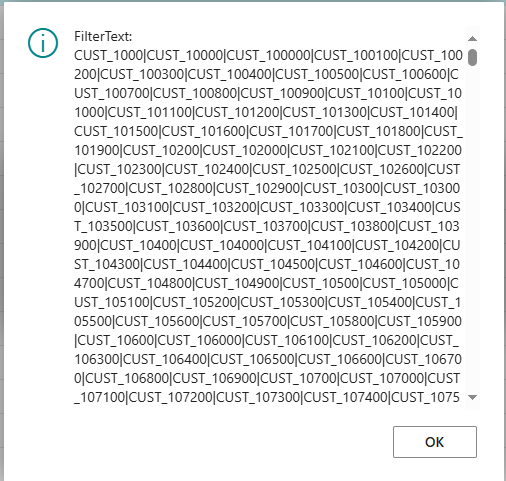
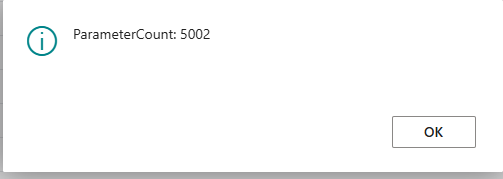
Try setting that filter:

And then running the code:
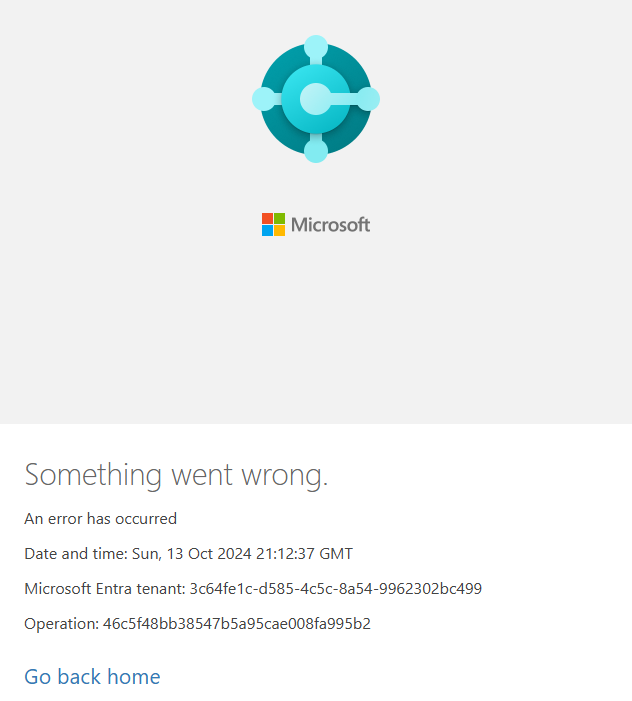
Oh… well, a Run Time Error will appear, and you will actually break Business Central.
Now, let’s try to use method GetMaxNumberOfParametersInSQLQuery from Type Helper Codeunit.
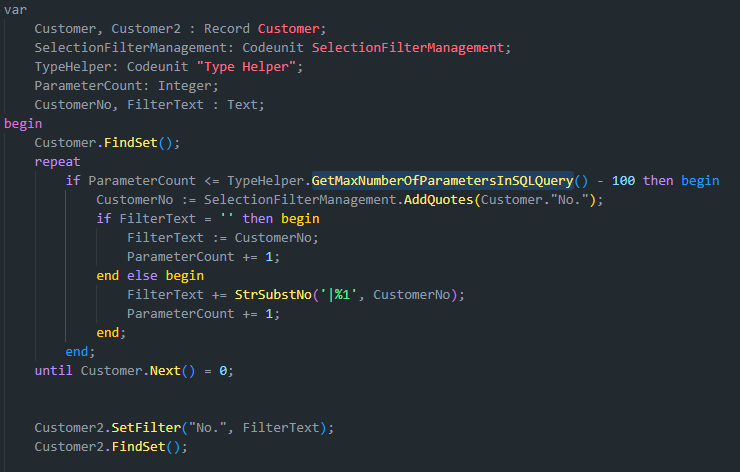
Now after running the code, execution happens without any error.
By following these best practices from the base application, you can effectively manage the number of parameters in your SQL queries and maintain optimal performance in your Business Central applications without causing accidental run-time errors.
Related posts


1 comment
- Ray Tivatyi
Interesting, thanks.