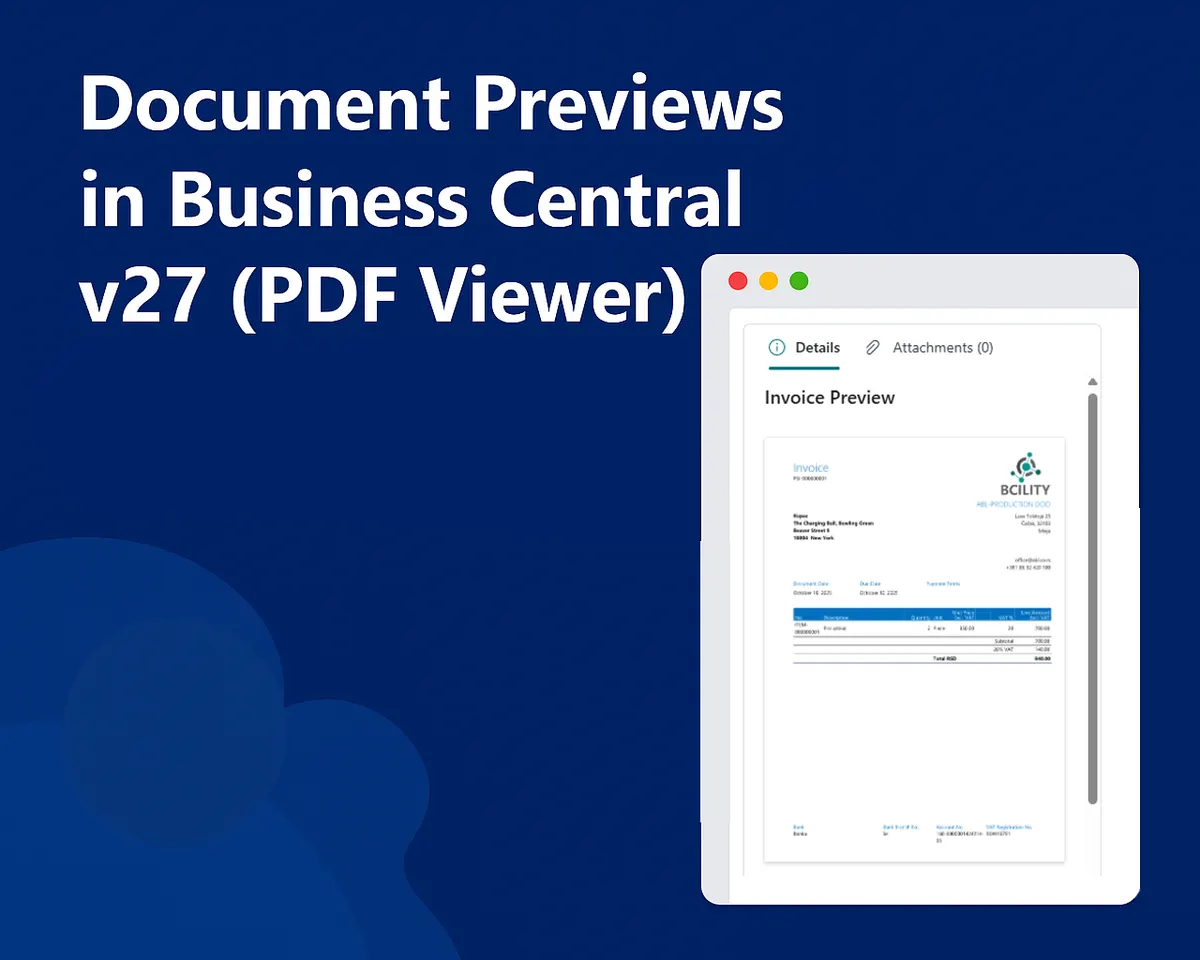
Document Previews in Business Central v27 (PDF Viewer)
Business Central version 27 introduces a new semantic enhancement for rendering media fields: the ExtendedDatatype = Document property. This feature enables portrait-optimized previews of image content—particularly useful for displaying thumbnails of documents such as PDFs—within FactBoxes. It is important to note that this feature does not support native PDF rendering. To preview a PDF, developers must first convert a selected page to an image and store it in a Media or MediaSet field.
This article outlines the purpose, scope, implementation, and best practices for using ExtendedDatatype = Document to deliver contextual image-based previews.
Overview of ExtendedDatatype = Document
As of runtime version 16.0, the ExtendedDatatype property supports the value Document. When applied to a Media or MediaSet field, this value instructs the Business Central client to treat the media as a document and render it in a portrait-optimized format. This is particularly effective for displaying thumbnails of scanned forms, invoices, or shipping documents.
However, the client does not render PDF files directly. To display a PDF preview, the developer must convert the desired page to an image format (such as PNG) and store it in the media field.
Supported Page Types
The Document value is supported on the following page types:
ListPartCardPart
These page types are commonly used for FactBoxes, making them ideal for displaying image-based document previews adjacent to the main record. This approach supports a “preview-at-a-glance” experience, allowing users to visually confirm document content without disrupting their workflow.
Implementation Procedure
To implement image-based document previews using ExtendedDatatype = Document, follow these steps:
- Define a Media or MediaSet field in the relevant table and assign
ExtendedDatatype = Document. - Create a CardPart or ListPart page to host the field and configure it as a FactBox on the main page.
- Convert the desired PDF page to an image using the
PDF Documentcodeunit (ConvertToImagemethod), and import the resulting stream into the Media field.
AL Code Example on Posted Sales Invoice
This functionality creates an invoice preview image that displays directly in the FactBox area of the Posted Sales Invoice page.
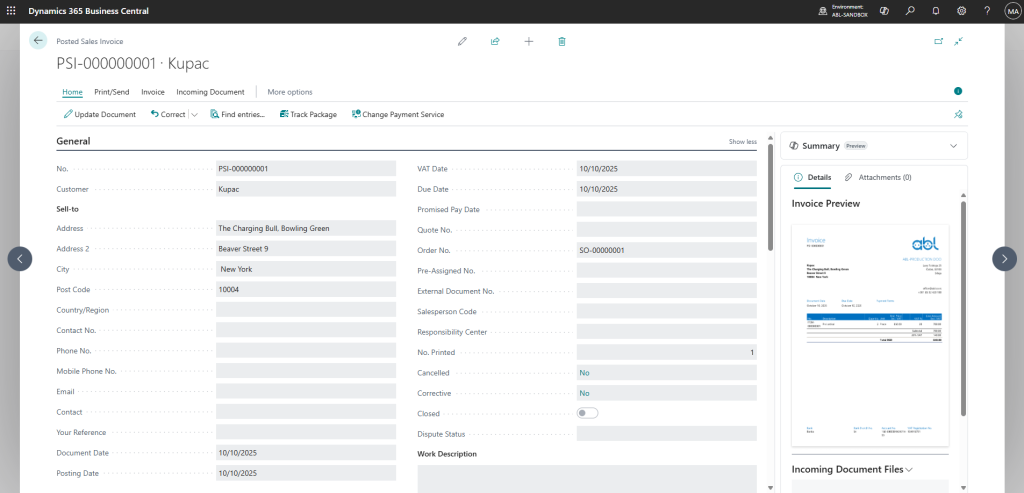
Table Extension
tableextension 53100 "SalesInvoiceHeaderExt" extends "Sales Invoice Header"
{
    fields
    {
        field(50112; "Invoice Preview"; Media)
        {
            Caption = 'Invoice Preview';
            DataClassification = CustomerContent;
            ExtendedDatatype = Document;
        }
    }
}
Factbox Page
page 53100 "Invoice Preview FactBox"
{
    PageType = CardPart;
    SourceTable = "Sales Invoice Header";
    SourceTableTemporary = true;
    Caption = 'Invoice Preview';
    Permissions = tabledata "Sales Invoice Header" = rimd;

    layout
    {
        area(Content)
        {
            field("Invoice Preview"; Rec."Invoice Preview")
            {
                ApplicationArea = All;
                ShowCaption = false;
                ToolTip = 'Shows a preview of the posted sales invoice report.';
            }
        }
    }

    trigger OnAfterGetCurrRecord()
    begin
        if not Rec."Invoice Preview".HasValue then
            GeneratePreview();
    end;

    local procedure GeneratePreview()
    var
        SalesInvoiceHeader: Record "Sales Invoice Header";
        PDFDocument: Codeunit "PDF Document";
        TempBlobImage: Codeunit "Temp Blob";
        TempBlobPDF: Codeunit "Temp Blob";
        InStrImage: InStream;
        InStrPDF: InStream;
        OutStr: OutStream;
        FileName: Text;
    begin
        if Rec."No." = '' then
            exit;

        // Set filter on the record for report
        SalesInvoiceHeader.SetRange("No.", Rec."No.");
        if not SalesInvoiceHeader.FindFirst() then
            exit;

        FileName := StrSubstNo('Invoice_%1.png', Rec."No.");

        // Save report as PDF to TempBlob with proper record filter
        TempBlobPDF.CreateOutStream(OutStr);
        Report.SaveAs(Report::"Standard Sales - Invoice", '', ReportFormat::Pdf, OutStr, SalesInvoiceHeader);

        // Load PDF and convert to image
        TempBlobPDF.CreateInStream(InStrPDF);
        PDFDocument.Load(InStrPDF);

        // Create a new stream for the image output
        TempBlobImage.CreateOutStream(OutStr);
        TempBlobPDF.CreateInStream(InStrImage);
        PDFDocument.ConvertToImage(InStrImage, Enum::"Image Format"::Png, 1);

        // Import image to Media field
        if Rec.Get(Rec."No.") then begin
            Clear(Rec."Invoice Preview");
            Rec."Invoice Preview".ImportStream(InStrImage, FileName, 'image/png');
            Rec.Modify(true);
        end;
    end;
}
Page Extension
pageextension 53100 "PostedSalesInvoiceExt" extends "Posted Sales Invoice"
{
    layout
    {
        addfirst(FactBoxes)
        {
            part(InvoicePreviewPart; "Invoice Preview FactBox")
            {
                ApplicationArea = All;
                SubPageLink = "No." = field("No.");
            }
        }
    }
}
Users can quickly see what the invoice looks like without having to click “Print Preview” or “Print” – it’s visible at a glance while viewing the invoice details
💡 This functionality works with temporary tables, you don’t need to store image-based PDFs in your databases.
❌ This code should be further optimized to run in a background session and other things; this is just a Demo of the functionality.
Limitations
- The client does not support direct rendering of PDF files in Media fields. A PDF must be converted to an image before it can be displayed.
- Initial builds of this feature only supported rendering the first page of a PDF. A fix is being deployed to allow selection of other pages via the
ConvertToImagemethod.
Recommended Practices
- Use document previews as a visual aid and complement them with a separate “View PDF” action for full document access.
- Standardize on a single page (typically the first) for thumbnail generation and update the Media field when the source document changes.
- Prefer
MediaorMediaSetfields overBLOBfor improved caching and rendering performance. - Clearly communicate to users and developers that the preview is image-based and not a full PDF viewer.
Practical Applications
- Display the first page of a sales invoice or posted document in a FactBox to assist with approvals or dispute resolution.
- Provide visual confirmation of vendor or customer documents on master cards.
- Offer lightweight previews of scanned forms or shipping documents on list pages without requiring external viewers.
The ExtendedDatatype = Document feature in Business Central v27 provides a streamlined method for rendering portrait-optimized image previews in FactBoxes. While it does not support native PDF rendering, it enables a practical and efficient way to display document thumbnails by converting PDF pages to images. This approach enhances the user experience by offering immediate visual context without compromising performance or requiring additional components.