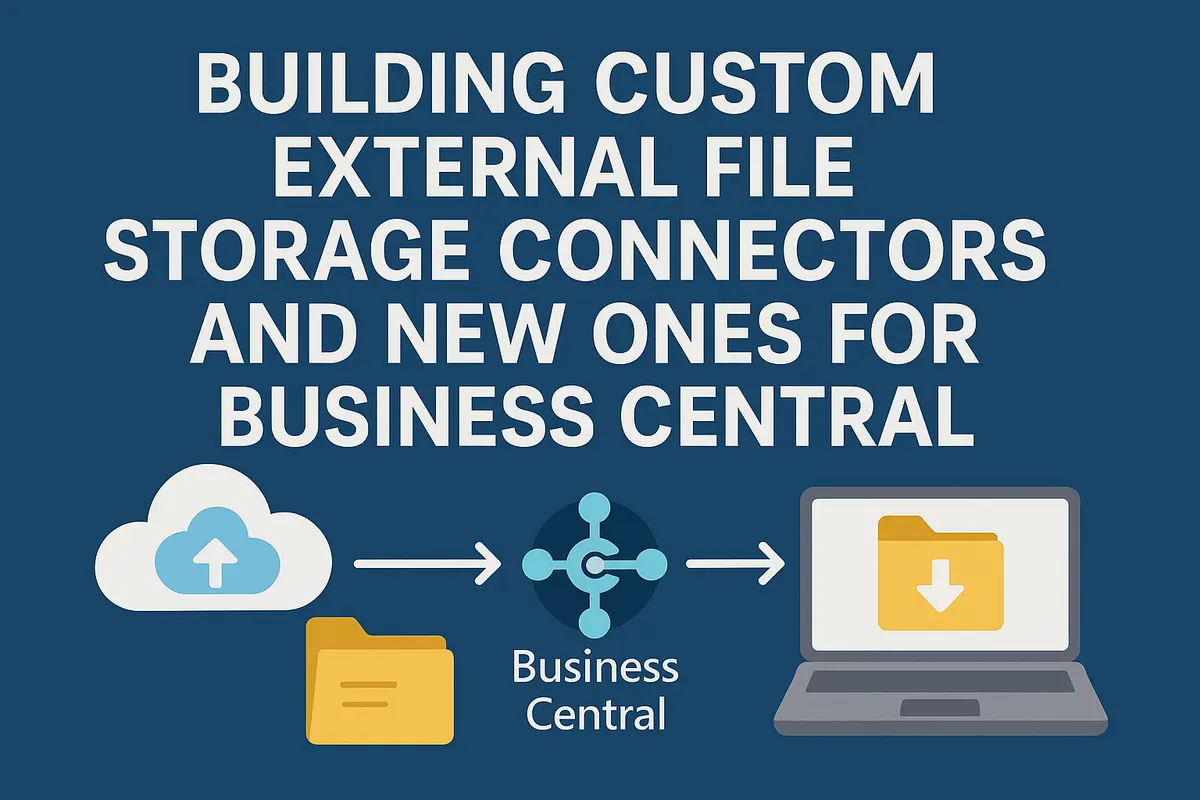
Building Custom External File Storage Connectors and new ones for Business Central
A few months back, I introduced the External File Storage Module for Business Central – a solution that helps you offload file attachments from your database to external cloud storage. The response has been incredible, and many of you have been asking how to extend it with your own storage providers.
Today, I’m excited to announce three new AppSource connectors that plug right into the External File Storage module:
- Cloudflare R2 Connector – Super affordable S3-compatible storage with zero egress fees
- Hetzner Storage Connector – Cost-effective European cloud storage
- AWS S3 Connector – The industry standard for object storage
But here’s the really cool part: you can build your own connector for any storage provider you want. Let me show you how.
Why More Storage Options Matter
The base module already supports Azure Blob Storage, Azure File Services, and SharePoint—which are great if you’re in the Microsoft ecosystem. But what if you need:
- Cost-effective alternatives (Cloudflare R2 has no egress fees!)
- Regional compliance requirements (Hetzner for GDPR-focused European hosting)
- Your own on-premises storage solution
- Integration with your existing cloud infrastructure
That’s where custom connectors come in. The module was designed from day one to be extensible.
How the Connector Architecture Works
The External File Storage module defines an interface called "External File Storage Connector" that any extension can implement. Think of it as a contract – you implement the methods, and Business Central handles the rest.
Here’s what makes this architecture powerful:
- Loose coupling: Your connector doesn’t need to know anything about the base module
- Plug-and-play: Install the connector extension, and it automatically shows up in BC
- Consistency: All connectors use the same API, so switching providers is seamless
Building Your Own Connector: The Essentials
Let me walk you through the key components using our Wasabi S3 connector as a real-world example.
Step 1: Register Your Connector
First, you need to tell Business Central about your connector. You do this by extending the "Ext. File Storage Connector" enum:
enumextension 50000 "New Connector" extends "Ext. File Storage Connector"
{
    value(50000; "New Connector")
    {
        Caption = 'New Connector';
        Implementation = "External File Storage Connector" = "New Connector Connector Impl.";
    }
}
What’s happening here?
- You’re adding a new value to the enum with your unique ID
- The
Implementationproperty links your enum value to the codeunit that does the actual work - Once this is installed, your connector appears as an option when users configure external storage
Step 2: Create Your Account Table
You’ll need a table to store connection details for each account. This is where users configure their credentials, endpoints, bucket names, etc.
table 50000 "New Connector Account"
{
    Caption = 'New Connector Storage Account';
    DataClassification = CustomerContent;
    Access = Internal;

    fields
    {
        field(1; Id; Guid)
        {
            Caption = 'Primary Key';
            DataClassification = SystemMetadata;
        }
        field(2; Name; Text[250])
        {
            Caption = 'Account Name';
        }
        field(3; Region; Text[2048])
        {
            Caption = 'Region';
            ToolTip = 'Connector Region (e.g., us-east-1, eu-central-1)';
        }
        field(4; "Bucket Name"; Text[2048])
        {
            Caption = 'Bucket Name';
        }
        field(5; Disabled; Boolean)
        {
            Caption = 'Disabled';
        }
    }
}
Tips:
- Store sensitive data (keys, secrets) using IsolatedStorage with Guid references
- Use the
Disabledfield to handle sandbox scenarios (more on this later) - Keep the table internal – you don’t want other extensions messing with it
Step 3: Implement the Interface Methods
This is where the magic happens. Your implementation codeunit must implement all methods from the interface. Here are the critical ones:
File Operations
- GetFile – Download a file from storage
- CreateFile – Upload a file to storage
- FileExists – Check if a file exists
Directory Operations
ListFiles – List files in a directory
Key insight: The module handles pagination automatically. You just need to:
- Use the marker from
FilePaginationData.GetMarker()for continuation - Call
FilePaginationData.SetMarker()with the next token - Call
FilePaginationData.SetEndOfListing()when done
Account Management
- RegisterAccount – Wizard to create a new accoun
- GetAccounts – List all configured accounts
- GetDescription & GetLogoAsBase64 – Provide metadata
Step 4: Handle the Sandbox Scenario
This is super important! When Microsoft copies a production environment to a sandbox, you don’t want the sandbox accidentally writing to production storage, you can use Event Subscriber OnClearCompanyConfig from Environment Cleanup codeunit.
What’s happening:
- When BC creates a sandbox from production, this event fires
- You automatically disable all accounts in the sandbox
- Users must explicitly re-enable and reconfigure for sandbox use
- This prevents accidental data corruption in production storage
Testing Your Connector
Here’s a checklist for testing:
Basic Operations
- Create, read, update, delete files
- List files with pagination (test with 1000+ files)
- Directory creation and listing
- File existence checks
Edge Cases
- Files with special characters in names
- Very large files (multi-MB)
- Empty directories
- Concurrent operations
Error Handling
- Invalid credentials
- Timeouts
- Storage quota exceeded
- Permission denied scenarios
Security
- Secrets never logged or displayed
- Disabled accounts can’t be used
- Sandbox isolation works correctly
Performance
- Response times for large directories
- Memory usage with large files
- Pagination efficiency
Why This Matters for Your Business
With these new connectors, you can:
Save Money
- Cloudflare R2: No egress fees (huge savings if you download files frequently)
- Hetzner: Up to 70% cheaper than major cloud providers
- AWS S3: Industry standard with predictable pricing
Stay Compliant
- Keep data in specific regions (GDPR, data sovereignty laws)
- Use providers with specific certifications you need
- Implement custom retention policies
Maintain Flexibility
- Not locked into a single vendor
- Switch providers without code changes
- Use different providers for different companies
Scale Efficiently
- Offload TB of attachment data from your BC database
- Improve database performance
- Reduce backup times and costs
Getting Started
- Try the existing connectors: Install from AppSource and see how they work
- Review the code: Check out the GitHub PR for the base module, it’s getting merged very soon!
- Build your own: Use this blog as a guide for your new connector implementaion
- Share with the community: Consider publishing your connector to AppSource!
What’s Next?
I would love to hear which providers you’d like to see. Let me know in the comments!
Also, if you build your own connector, I’d love to feature it in a follow-up post. Reach out via LinkedIn or email.
Wrapping Up
The External File Storage module is about giving you choices. Whether you go with our pre-built connectors or build your own, you now have the power to optimize your BC file storage strategy.
The connector architecture is straightforward, well-documented through working examples, and production-ready. You don’t need to be a cloud storage expert – just implement the interface, handle the basics, and you’re good to go.