
New changes for development of Word Layout
The most useful document reporting updates in Business Central 2026 release wave 1 are the ones that make the Word layout work less fussy inside Word. If I build or maintain report layouts in AL projects, I care more about whether everyday editing gets faster.
That is what stands out here. The Word add-in gets a better data picker, search, and a new table builder in preview, all with a clear push toward easier layout design for people who work on Word Layouts.
Why the Word layout changes matter
The point of these updates is simple. Microsoft wants document layout design to work better for more people, not only for developers who already know the report dataset inside out.
I think that shift matters. A Word layout often lands in the hands of someone in finance, ops, or customer service who knows the document well but does not want to fight the tooling. If the add-in feels awkward, those users fall back to trial and error. If it feels clear and fast, they can make safe changes on their own and hand cleaner requirements back to developers.
For developers, that still matters a lot. Even if I am the one building the base report and dataset, I still spend time checking field names, placing repeaters, testing labels, and fixing table structures. Small UX changes save real time when I repeat those tasks across many layouts.
If I want the official setup and usage details behind these changes, Microsoft already has solid documentation for the Word add-in for report layouts. That page helps connect the demo with the practical side of building and maintaining layouts.
Install Business Central Word add-in
- On the Home tab, select Get Add-ins.

2. In the Search field, enter Dynamics 365 Business Central Word Add-in to display Business Central add-ins.
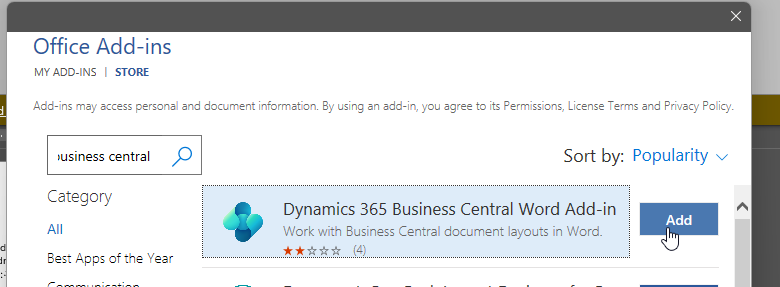
3. Select the add-in version you want and then select Add. The Business Central tab appears in the ribbon.
❌ At this point you need preview version, and that one can’t be found that way, but on Marketplace.
Business Central Word Add-in preview version: Dynamics 365 Business Central Word Add-in (Preview)
The data picker finally feels easier to use
The biggest improvement is the updated data picker. This is where most Word layout work either feels smooth or gets annoying fast, so it makes sense that Microsoft started here.
In the updated version, the first visible change is the Business Central theme. That is nice, but the better part is how the tree is easier to read. Nested levels are clearer, which matters when I am working with reports that have several data items and labels mixed together. I do not want to guess where a field lives, especially inside a larger dataset.
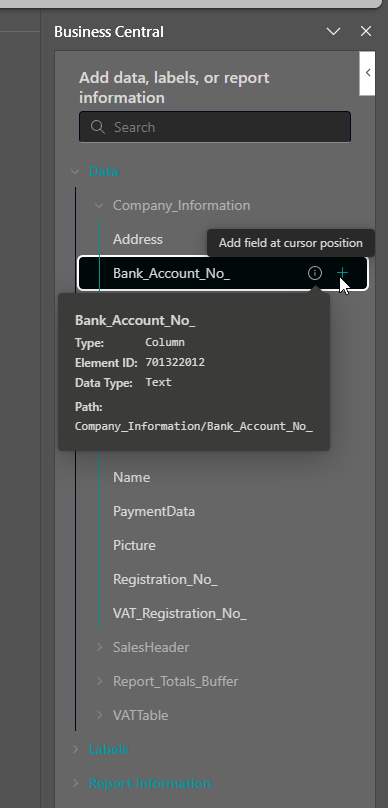
The insert flow is better too. I can insert a data item by double-clicking it, which sounds small until I think about how often I repeat that action in a report. That cuts a lot of extra pointer movement. Then, if I am inside a Word table, the cursor moves to the next cell after insertion. That one change makes column-by-column layout work feel much more natural.
There are also clearer icons for inserting data and for opening metadata. The Show metadata action opens a popup with useful information about the selected field. That matters because report layouts often break down when field names look similar but come from different parts of the dataset. A quick metadata view helps me confirm what I am about to place before I clutter the document.
The data picker also gets dark mode, which is available in both preview and release versions of the add-in. That will not change the logic of a layout, but it does make long editing sessions easier if I already work in a darker desktop setup.
Search fixes one of the worst parts of large report datasets
The search bar in the data picker may be the most practical addition of the bunch. When a report has a long dataset, scrolling through every node is slow and easy to mess up. Search removes most of that pain.
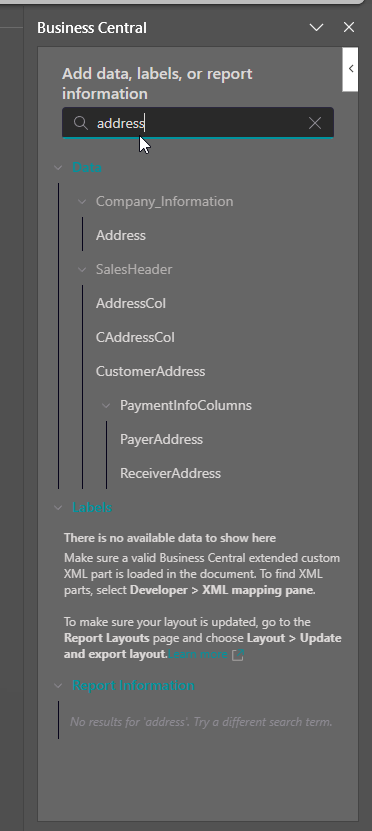
In the demo, typing “date” filters matching fields across levels, labels, and report information. That is the key detail for me. Search is not boxed into one small branch. It helps me find matching items across the structure, which is what I need when I remember the business meaning of a field but not its exact location.
That also makes dataset exploration faster. In many layouts, I know I want some version of posting date, shipment date, or due date, but I do not remember the exact field name or placement. A search-first flow gets me there much faster than drilling into one node at a time.
This is also better for handoff work. If another person inherits a report layout and did not build the original report object, search gives them a way to orient themselves without opening AL code right away. That will not replace understanding the dataset, but it lowers the cost of finding the right field.
For developers who want the broader reporting context, the Business Central report development documentation is still the right companion. The Word add-in improvements help with placement and editing, while the report docs still matter when I need to shape the dataset and layout behavior at the source.
The new table builder is the most important preview feature
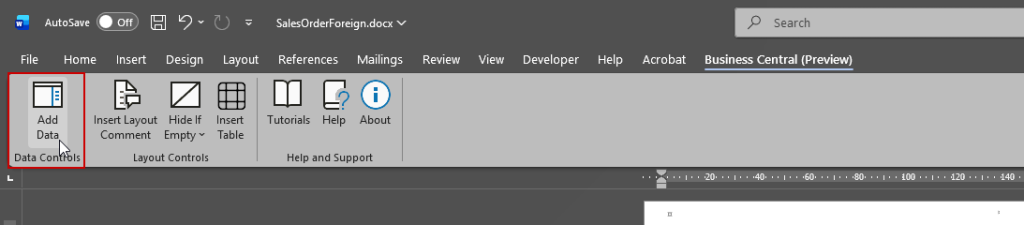
The preview feature that stands out most is the new Insert Table action. This sits in the data control area and opens a dialog that helps build and populate a table in one place.
That solves a problem I have hit many times. Building a repeating section in a Word layout often means bouncing between dataset fields, table structure, headers, and manual cleanup. It works, but it is tedious. The table builder pulls those setup steps into one guided flow.
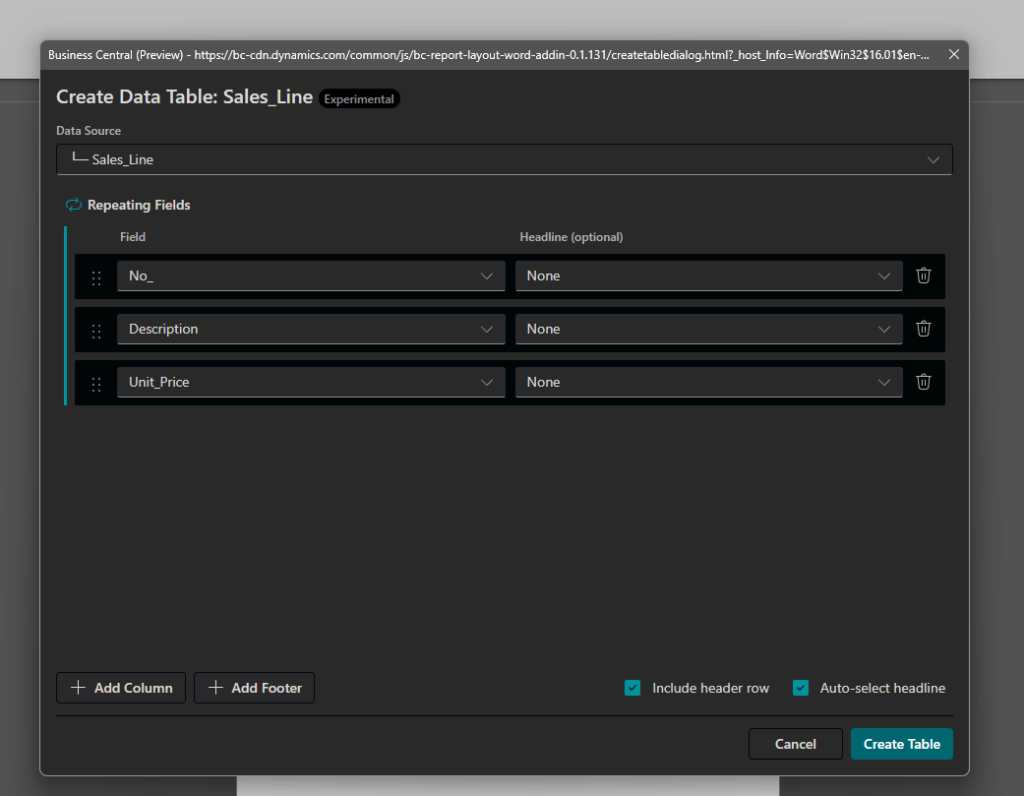
The dialog lets me choose the data source first, such as sales line in the demo. Then I choose the number of columns, add or delete columns, and decide whether to include a header row. There is also an option called auto-select headline, which fills in the header text for me. That is one of those small touches that saves time, especially when I am blocking out a layout quickly before styling it.
Here is the table builder flow in a simple view:
| Feature | What it does |
|---|---|
| Data source | Picks the dataset section the table should repeat over |
| Columns | Lets me set how many columns I want, then add or remove them |
| Header row | Turns the top header row on or off |
| Auto-select headline | Fills header names automatically for selected fields |
| Field selection | Adds fields, changes order, and supports extra footer content |
| Create table | Builds the table with header, repeater, and data items |
The last step is the real payoff. After field selection and ordering, clicking Create Table inserts the full structure into the document, including the header, repeater, and selected data items. In the demo, Mirko also adds a footer value outside the repeater, which shows that the tool is not limited to a bare list of repeating fields.

I like this feature because it reduces setup mistakes. A lot of layout issues come from placing the right field in the wrong place, or building the table correctly but forgetting where the repeating region should sit. A guided builder cannot remove every mistake, but it can reduce the awkward manual work that often creates them.
What I take away from these Word layout updates
If I build document reports in Business Central, the main win here is speed with less friction. The updated data picker removes several common annoyances, and the preview table builder points to a better way of handling repeaters and column layouts inside Word.
I also like the direction behind the changes. The add-in is getting better at helping people work with the dataset visually, which is exactly what a Word-first layout tool should do. For developers, that means less time on routine placement work and fewer layout cleanup passes later.
The best takeaway is not that Word layouts suddenly become simple. It is that the boring parts are getting easier, and that is usually where the real time savings show up.
Related posts

al graph: Auditing Who Can Reach Your Code in AL 18.0
Development · 24 Aug 2026

The AL Performance MCP
AI (Claude and Copilot) · 8 Jul 2026

Missing Actions on Pages After Upgrading to Business Central 28???
Development · 1 Jun 2026

AL MCP Server for Debugging in Business Central
AI (Claude and Copilot) · 8 Apr 2026