
Using AI to Analyze Business Central Snapshots Debugs and Profiles
Debugging and optimizing Business Central usually is not simple and fast process. You know something’s wrong. Maybe it’s slow, maybe it’s crashing, or maybe it’s just giving you the wrong numbers. But finding the actual problem buried in dozens of procedures, triggers, and event subscribers? That could eat up your entire afternoon.
Then I discovered something that honestly changed how we work: combining snapshot debugging with AI analysis. I’m talking about taking what used to be a 3-hour investigation and knocking it out in 15 minutes.
In this post, I’m going to show you exactly how I do this:
- Grabbing a snapshot from a Business Central environment
- Generating a performance profile when I need it
- Letting AI (GitHub Copilot or Claude) do the heavy lifting of analysis
I’ve been using this workflow for both bug hunting and performance optimization. It’s especially useful when:
- You’re dealing with production issues and can’t just throw breakpoints everywhere
- You’re trying to understand those nasty event chains that span multiple extensions
- You’ve got logic errors that only show up with specific data
- You need to figure out why something is painfully slow
What is Snapshot Debugging?
If you haven’t used snapshot debugging before, here’s the quick version: it’s basically a non-intrusive way to record everything that happens during a Business Central operation. You get the full call stack, all the variables, the execution flow, everything, without actually interrupting what the user is doing.
More about Snapshot debugging and how to perform one, in my previous blog about debugging: Deep Dive into AL Debugging: A Complete Developer’s Guide – Stefan’s BC Blog
The beauty of it is that traditional debugging with breakpoints basically freezes everything. Snapshot debugging? It just quietly records what’s happening and lets you replay it later in VS Code.
Demo time
Test App
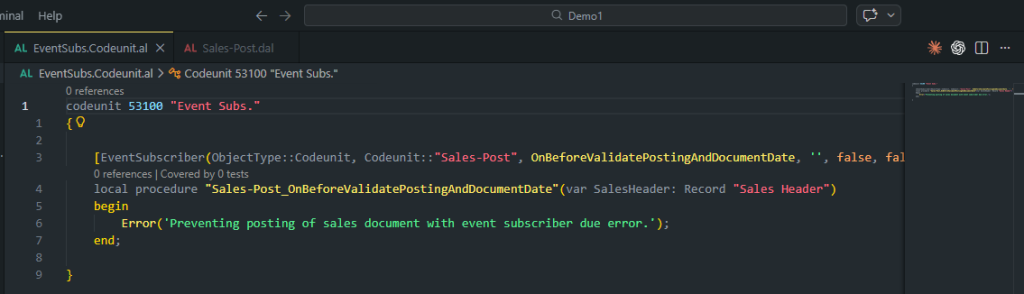
For this Demo I prepared a test app with an event subscriber that will throw an error in the Sales Post routine.
Capturing a Snapshot
Alright, let’s actually grab a snapshot. We will start the recording, try to post the Sales Order, and then finalize the snapshot debugging.
In your case, whatever triggers the problem in Business Central:
- Slow operation? Post that sales order, open that heavy page, run that report
- Wrong calculation? Go through the transaction that’s giving you bad numbers
- Mystery crash? Trigger that error that only happens in production
- Data corruption? Run through the process that’s messing up your records
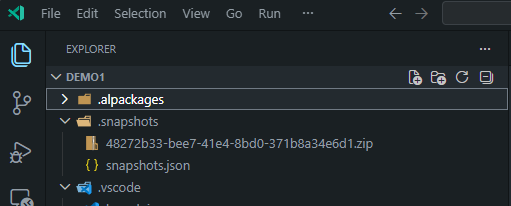
That snapshot you just grabbed? It’s got everything: call stacks, variable values, execution flow, and timing data for every single procedure, trigger, and event that fired.
Generate a Profile
If you’re trying to figure out why something is breaking or is slow, you’ll want to generate a profile:
- Hit Ctrl+Shift+P to open the Command Palette
- Type “AL: Generate profile file from snapshot” and select it
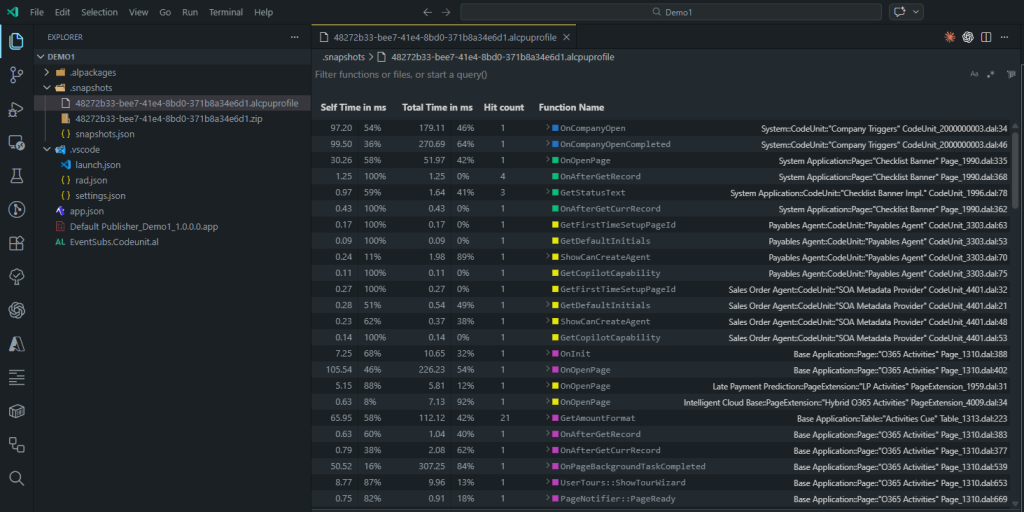
- VS Code generates for you out a `.alcpuprofile` file
- The Performance Profiler view pops up automatically
Reading the Profile
The profiler gives you two different ways to look at the data:
Top-Down View:
- This shows you the call hierarchy starting from the entry points
- You see both total time (including everything called underneath) and self time
- I find this useful when I want to understand the big picture
Bottom-Up View:
- This sorts everything by self-time, hottest stuff first
- Helps you zero in on which specific procedures are eating up time
- This is usually where I start when hunting for bottlenecks
Getting Ready for AI Analysis
Here’s the thing, VS Code’s built-in views are nice, but manually digging through complex execution flows or profiles still takes forever. This is where throwing AI at the problem changes everything.
How is fancy bottom-up or top-down graph looking raw:
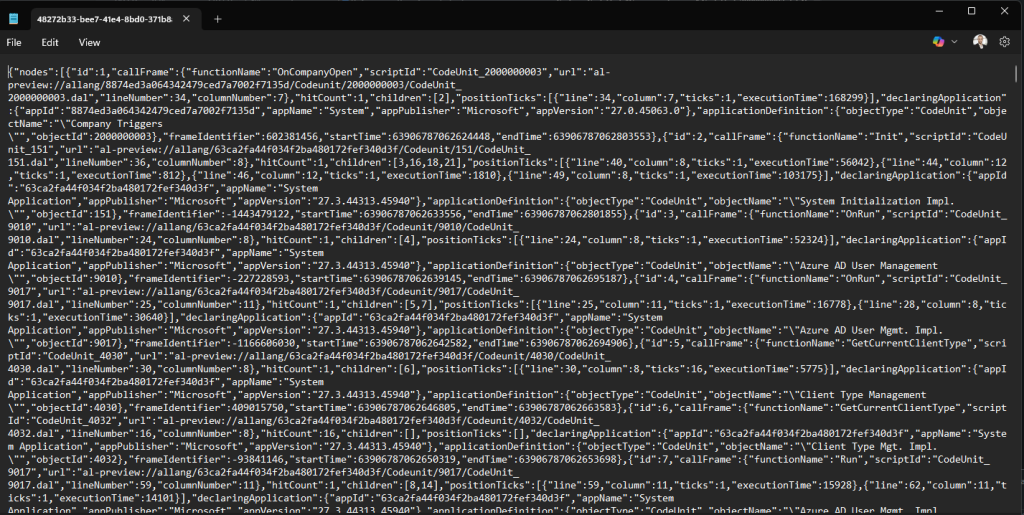
This comes in handy, because structured data like this can be easily read by AI.
Let AI Do the Work
Okay, this is the fun part. I’m going to hand this off to AI and let it figure out what’s going on.
If you’ve got Copilot Chat in VS Code:
- Pop open the Chat panel (Ctrl+Alt+I)
- Attach your snapshot or profile file
- Ask it the right questions based on what you’re investigating
We will use something like this for our demo:
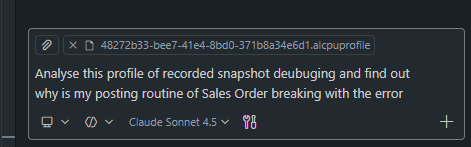
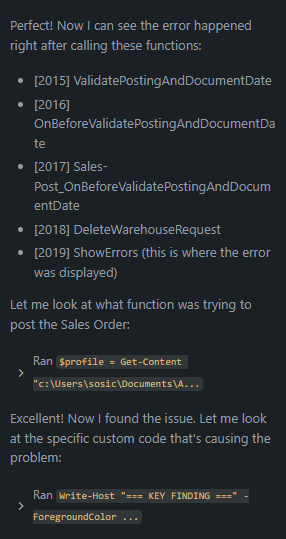
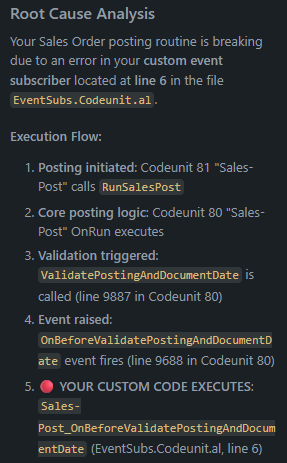
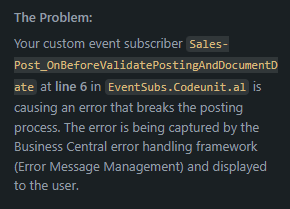
I ran the VS Code Copilot outside the app, in a separate folder, so it wouldn’t have access to the code we published to break the behavior. But as you can see, it found exactly what is breaking the behaviour.
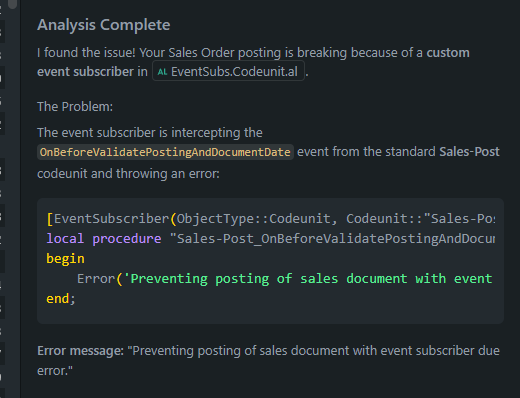
And if you were in the extension that is causing the issue, you would get the exact place and code that is causing it to break:
Wrapping Up
Honestly, combining snapshot debugging with AI has changed how I work with Business Central. What used to take me hours of staring at call stacks and profiling data now takes maybe 15-20 minutes. The AI just sees patterns and connections way faster than I do.
The main things to remember:
- Snapshots give you everything that happened in production without breaking anything
- AI turns that mountain of data into actual actionable stuff
- It works for both bugs and performance – same process, different questions
- You could learn faster 😂 because AI explains why things are broken, not just what’s broken
This has been especially helpful for:
- When dealing with someone else’s code and having no idea what it’s supposed to do
- Working with customer environments where can’t just debug normally
- Support scenarios where needed to understand what actually happened in production
The time savings alone would be worth it, but what I really like is how much faster developers can get info about why, how, what and where.
Happy debugging.
Related posts
The AL Performance MCP
AI (Claude and Copilot) · 8 Jul 2026
AL MCP Server for Debugging in Business Central
AI (Claude and Copilot) · 8 Apr 2026

Using AI to Enrich Web Shop Items in Business Central
AI (Claude and Copilot) · 1 Oct 2026
al graph: Auditing Who Can Reach Your Code in AL 18.0
Development · 24 Aug 2026