Deep Dive into AL Debugging: A Complete Developer’s Guide
Debugging is one of the most critical skills for any AL developer working with Microsoft Dynamics 365 Business Central. Whether you’re troubleshooting complex business logic, investigating performance issues, or debugging web services, having a deep understanding of AL debugging capabilities can significantly improve your development efficiency and code quality.
In this comprehensive guide, we’ll explore the full spectrum of AL debugging features, from basic breakpoints to advanced snapshot debugging techniques.
Understanding Debugging Limitations
Before diving into debugging techniques, it’s crucial to understand the limitations that govern AL debugging in Business Central.
External Code Debugging Restrictions
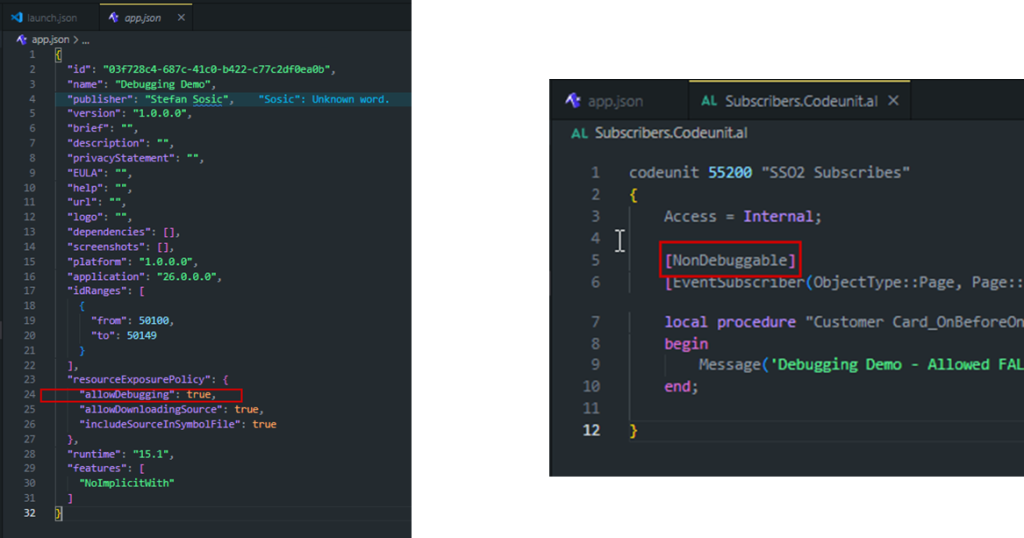
One of the most important limitations to be aware of is that “External code” can only be debugged if the code has the allowDebugging flag set to true. This means that when working with extensions from other publishers or Microsoft’s base application, you’ll only be able to step through code that explicitly permits debugging.
Development Application Considerations
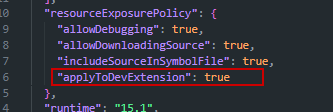
When working with development applications, the applyToDevExtension property plays a crucial role in determining what code can not be debugged. This setting determines if resourceExposurePolicy applies even for the developer extension.
Client Instance Management
The AL debugger has specific behaviors regarding client instances that developers should understand:
- New Instance Per Session: The debugger launches a new client instance each time you press F5
- Session Independence: If you close a debugging session and start a new one, it relies on a completely new client instance
- Best Practice: Always close Web client instances when you finish a debugging session
- No Pause Support: Pausing debugging sessions isn’t supported – you must either continue or stop
Mastering Breakpoints
Breakpoints are the foundation of effective debugging. AL debugging supports several types of breakpoints that cater to different debugging scenarios.

Extension Breakpoints
These are your standard breakpoints set within your own extension code. They’re the most straightforward type and work exactly as you’d expect in any modern development environment.
External App Breakpoints
More interesting are breakpoints in external applications. Remember that these only work if the external code has debugging enabled through the allowDebugging flag.

Conditional Breakpoints
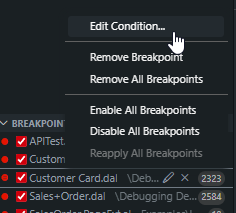
One of the most powerful debugging features is conditional breakpoints. These allow you to pause execution only when specific conditions are met, which is invaluable when debugging loops or code that executes frequently but only fails under certain circumstances.

Advanced Break Configurations
Beyond traditional breakpoints, AL debugging offers specialized break configurations that can dramatically improve your debugging efficiency.
Break on Error
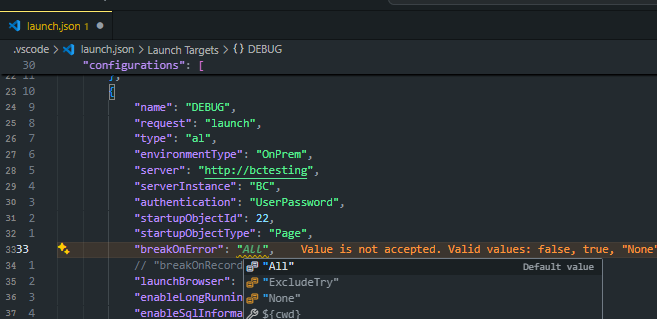
The breakOnError property is enabled by default (set to true) and automatically pauses execution whenever an error occurs. This is particularly useful for catching exceptions that might otherwise be handled silently or logged without stopping execution.
Break on Record Changes
The breakOnRecordWrite property (default value false) is a powerful feature for database-related debugging. When enabled, it captures:
- Insert operations
- Modify operations
- Delete operations
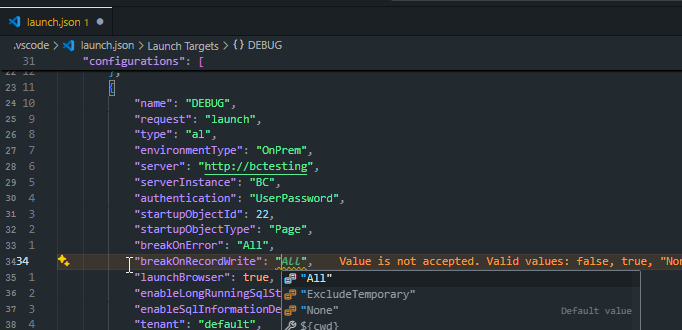
This is invaluable when tracking down unexpected database changes or investigating data integrity issues.
Handling Large Variable Values
When debugging complex objects or large datasets, you’ll encounter AL’s variable inspection limitations:
- Size Limit: Variable values are limited to 1024 bytes in the debugger
- Truncation: Values exceeding this limit are automatically truncated
- Workaround: For larger values, consider logging to files or breaking down inspection into smaller parts




Debug SQL Behavior
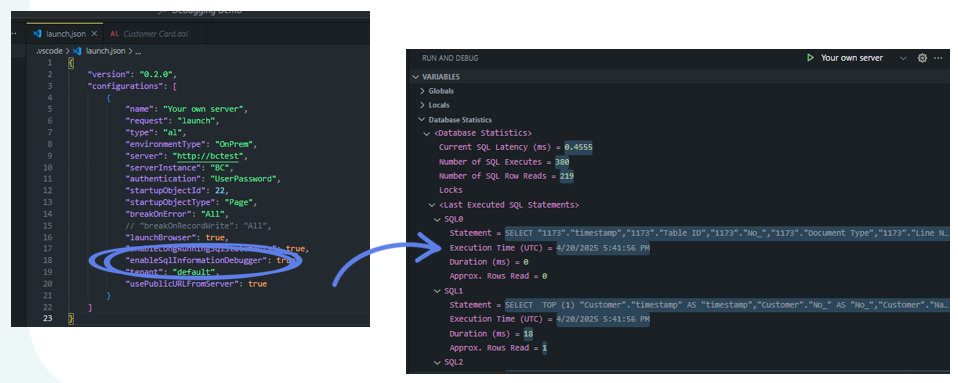
Understanding database interaction is crucial for performance optimization and troubleshooting. AL debugging provides several SQL debugging capabilities:
Enable SQL Information
This feature provides detailed insights into database operations, including:
- Database Statistics: Performance metrics and operation counts
- Lock Information: Details about database locks and potential deadlocks
- SQL Statement Statistics: Execution times, row counts, and query plans
These insights are invaluable for identifying performance bottlenecks and understanding how your AL code translates to database operations.
Essential Debugging Shortcuts
Efficient debugging relies heavily on keyboard shortcuts. While the specific shortcuts weren’t detailed in the presentation, mastering them will significantly speed up your debugging workflow. Focus on learning shortcuts for:
- Step over (F10)
- Step into (F11)
- Step out (Shift+F11)
- Continue (F5)
- Stop debugging (Shift+F5)
Attach to Client Debugging
One of the most powerful debugging features is the ability to attach to running client sessions.
User Session Attachment
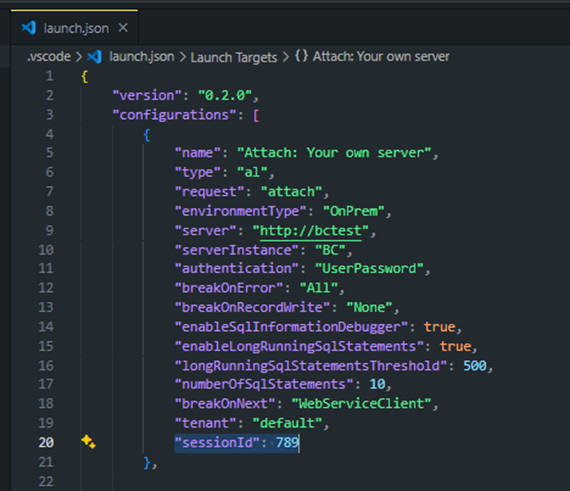
You can attach to:
- Current user sessions
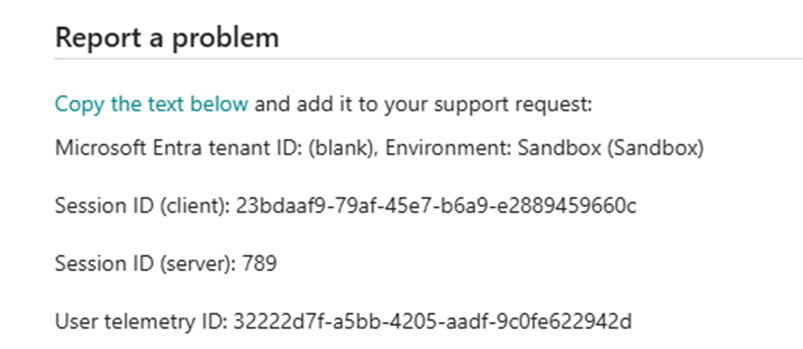
- Specific sessions by Session ID
- Sessions by User ID
This capability is particularly useful for debugging issues that only occur in specific user contexts or during particular business processes.

SaaS Permissions (Business Central 26.0+)
For SaaS environments running Business Central 26.0 and later, you’ll need the D365 Attach Debug permission to use client attachment features. This permission ensures that debugging capabilities are properly controlled in cloud environments.
Snapshot Debugging: Production-Ready Debugging
Snapshot debugging represents one of the most significant advances in AL debugging, particularly for production environments.
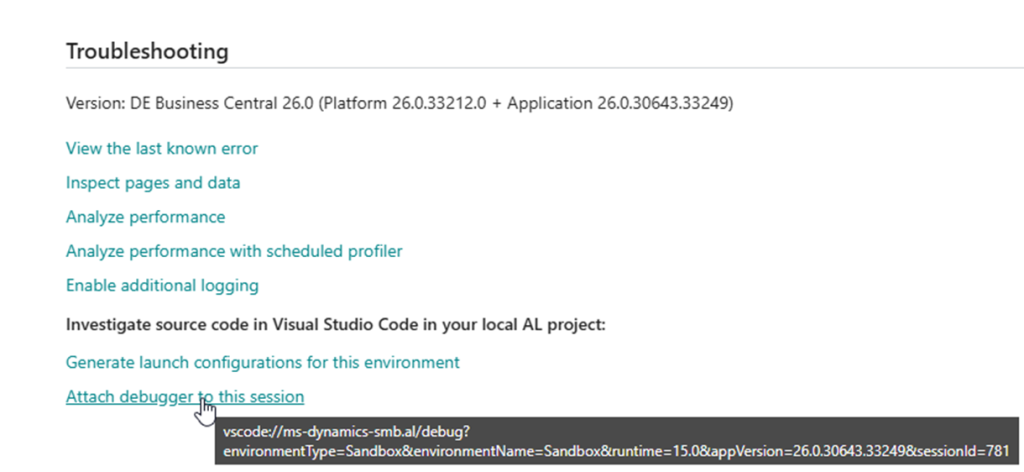
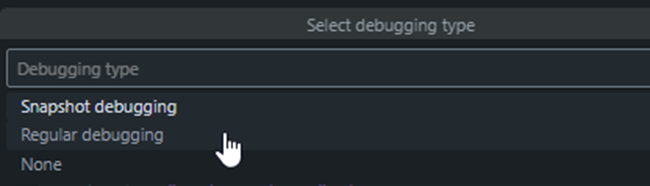
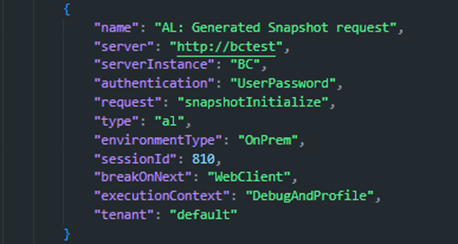


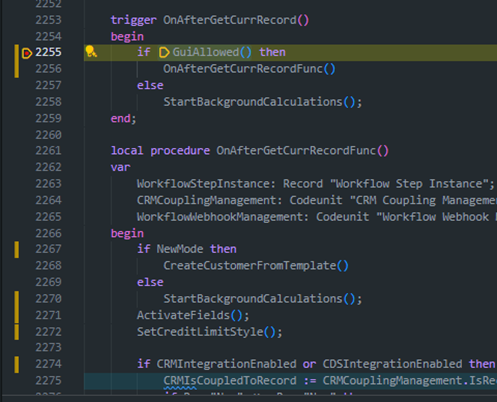
Perform actions that you want to record in a snapshot and perform Finish snapshot debugging.

Key Features
- Record and Play: Capture debugging sessions that can be replayed offline
- Production Safe: Designed specifically for production debugging scenarios
- D365 Integration: Requires the D365 SNAPSHOT DEBUG permission
Limitations to Consider
Snapshot debugging comes with several important limitations:
-
ShowMyCode and NonDebuggable: Some code may not be accessible even in snapshot mode
-
Time Constraints:
- Must be started within 30 minutes of the triggering event
- Must finish within 10 minutes after starting
-
Size Limit: 100 MB limit to prevent issues with infinite loops or excessive recursion
Snapshot Profiler
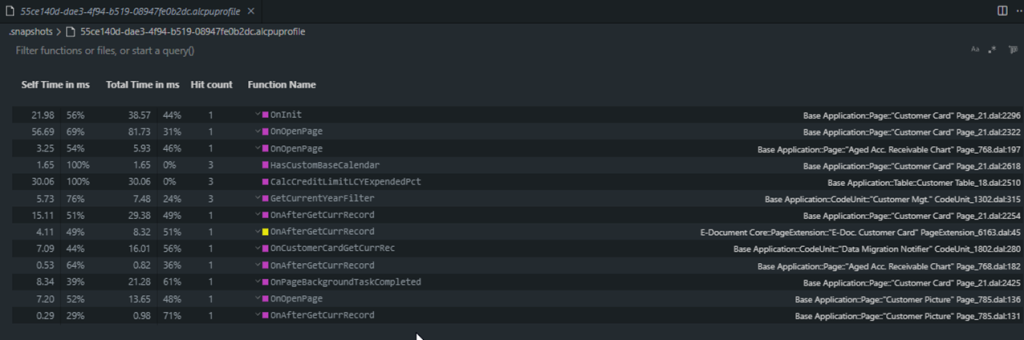
Beyond debugging, snapshot profiling provides performance analysis capabilities:
- Profile Generation: Creates detailed performance profiles of code execution
- Multiple Views: Supports both top-down and bottom-up analysis views
- Filtering: Allows filtering of results for focused analysis
- Execution Tracking: Shows code execution even when debugging isn’t explicitly allowed

Debugging Web Services
Modern Business Central implementations heavily rely on web services and APIs. AL debugging provides specific capabilities for web service debugging:
API Debugging Process
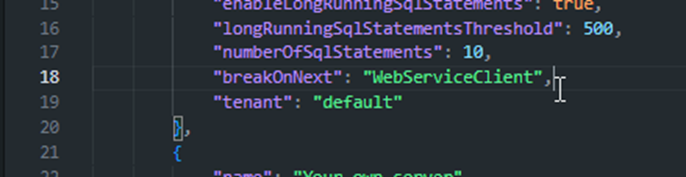
- Attach to Session: Connect the debugger to the appropriate session
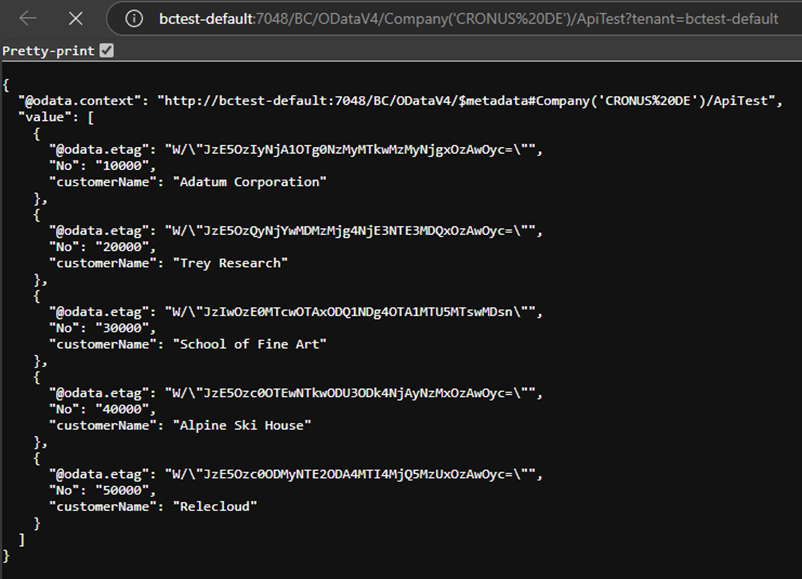
- Trigger API Call: Execute the web service call that needs debugging
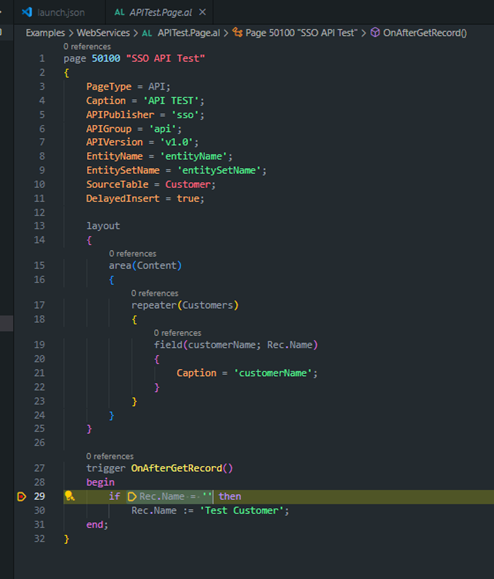
- Step Through: Debug the server-side code as it processes the API request
This approach is invaluable for troubleshooting integration issues, API performance problems, or unexpected behavior in web service endpoints.
Production Debugging
- Use snapshot debugging for production issues that can’t be reproduced in development
- Respect the time limits and size constraints of snapshot debugging
- Plan snapshot debugging sessions carefully due to the 30-minute startup window
Web Service Debugging
- Test API debugging in development environments first
- Use session attachment for debugging live web service calls
- Monitor both client and server-side behavior during API calls
Conclusion
AL debugging in Business Central offers a rich set of tools that can dramatically improve your development and troubleshooting capabilities. From basic breakpoints to advanced snapshot debugging, understanding these features will make you a more effective AL developer.
The key to mastering AL debugging is understanding not just what tools are available, but when and how to use them effectively. Whether you’re debugging complex business logic, investigating performance issues, or troubleshooting production problems, the comprehensive debugging capabilities in AL provide the insights you need to build robust, reliable Business Central solutions.
Remember that debugging is not just about finding problems – it’s also about understanding how your code behaves, optimizing performance, and gaining deeper insights into the Business Central platform itself.