
Supercharge your AL Development with VS Code: Settings, extensions, and tips
You don’t need a whole new toolchain to speed up AL development—you need to squeeze more out of VS Code. With the right extensions, a few sensible settings, and some workflow habits, you can cut noise, prevent silly mistakes, and keep your codebase consistent without thinking about it.
This is a practical walkthrough of the setup I demoed at Days of Central Knowledge 2025. It’s written to be used. Skim, copy, and adopt what makes sense for your team.
The core extensions I actually use, I’ll explain what each one does, what you get out of it, and when to reach for it.
AL Studio
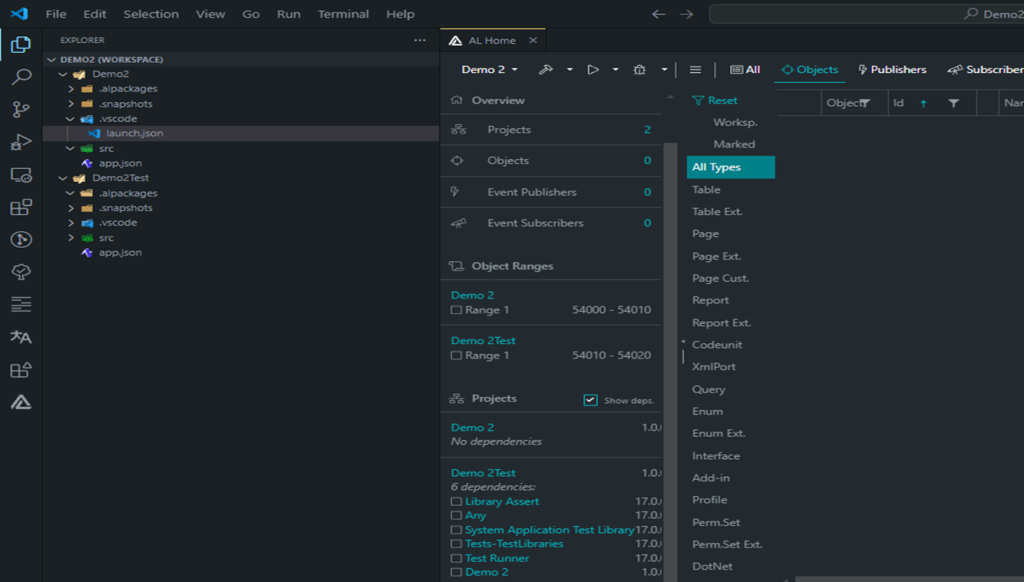
AL Studio makes working across multi-project workspaces less painful.
-
What it does:
- Workspace scaffolding: Create AL workspaces with sensible structure, multiple projects, and shared settings.
- Object navigation: Jump between objects, publishers, and subscribers without hunting.
- Dependencies view: See who depends on what so you don’t break contracts blindly.
- Object ranges: Keep ranges visible and enforced across projects.
-
What you get from it:
- Clarity: You always know where things live, what’s used, and whether you’re about to cause a ripple.
- Speed: Less file digging, more coding.
-
Use it when:
- You’re juggling app + test app.
- You need a quick bird’s-eye view of objects and dependencies.
AL Toolbox (ALTB)
ALTB is your “bulk edit and hygiene” toolkit.
- What it does:
- Renumber objects and fields: Project-wide, safely.

- Change object prefixes: Add/update prefixes across objects, fields, keys.
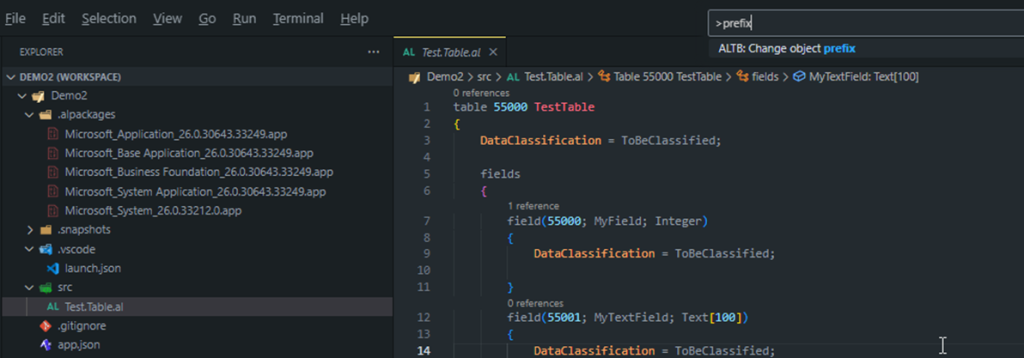
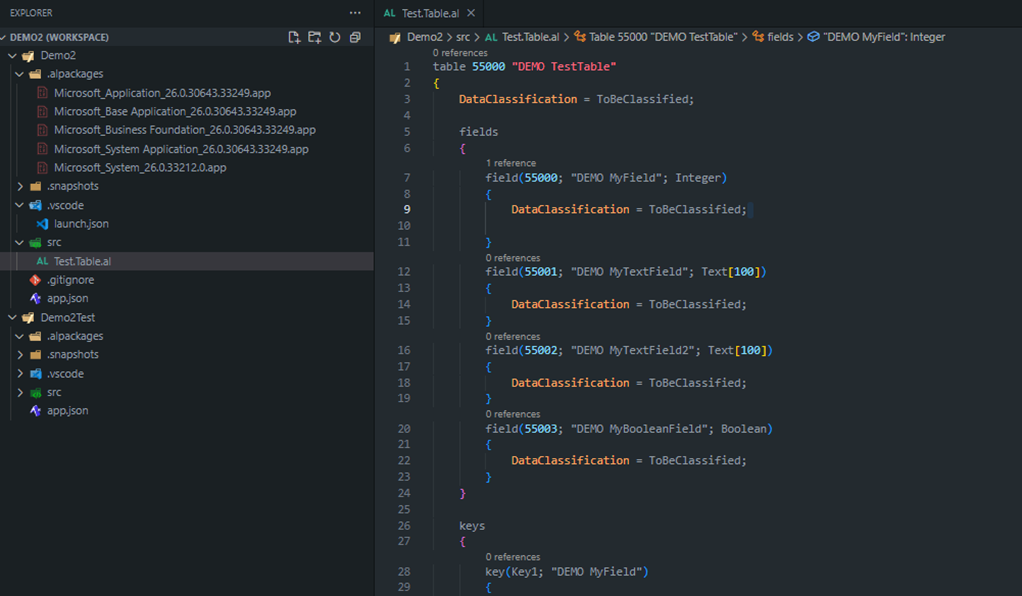
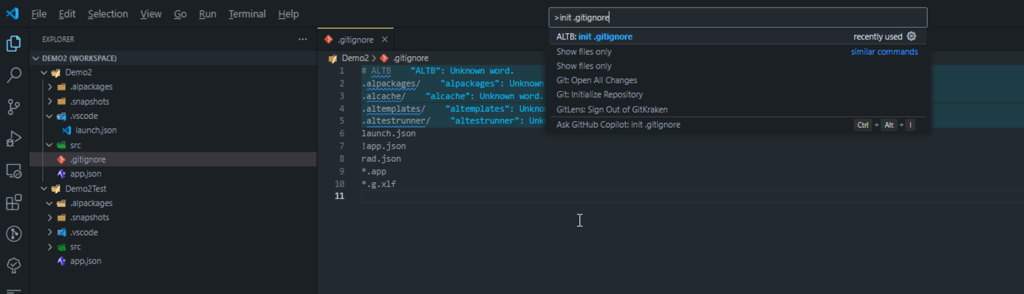
- Init .gitignore: Generates an AL-aware ignore file (alpackages, cache, templates, test runner, etc.).
-
What you get from it:
- Consistency at scale: Prefix discipline without manual edits.
- ID cleanup: Fixes the mess you put off “until later.”
-
Use it when:
- You inherit a project with inconsistent prefixes.
- You’re aligning to a new naming policy.
- You need to sweep field IDs after heavy refactors.
AZ AL Dev Tools / AL Code Outline
Think of this as a Swiss Army knife for AL code structure and cleanup.
- What it does:
- Code cleanup: Fix identifier and keyword casing, remove unused variables/usings, one statement per line, remove unnecessary begin/end, remove WITH, sort variables/usings/procedures.
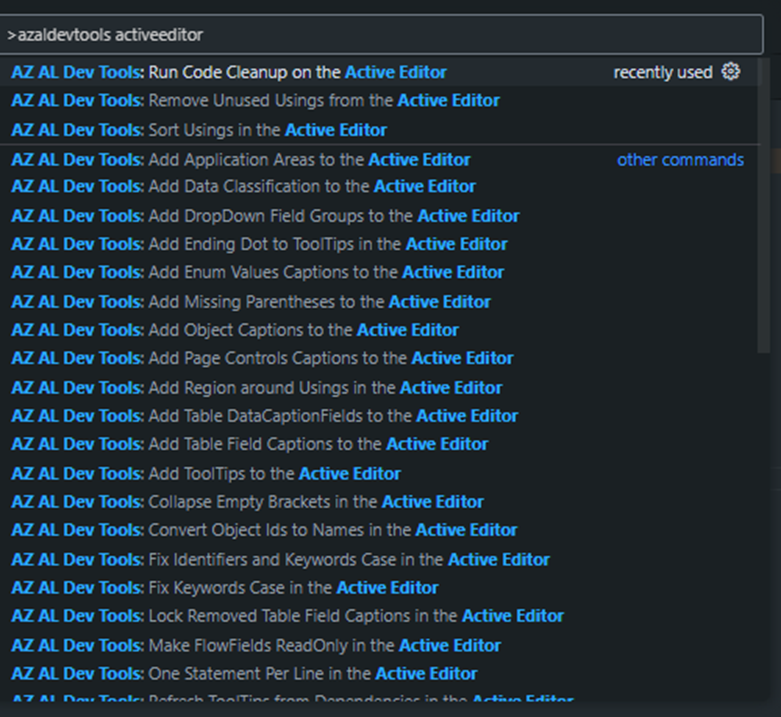
- Boilerplate helpers: Add captions, tooltips, application areas, field captions, DataClassification, Table DataCaptionFields.
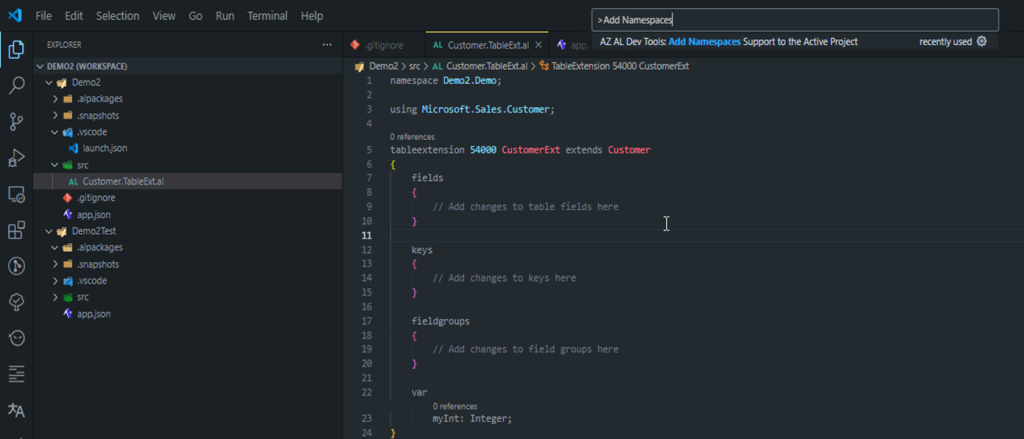
- Namespaces: Add namespaces support and organize usings.
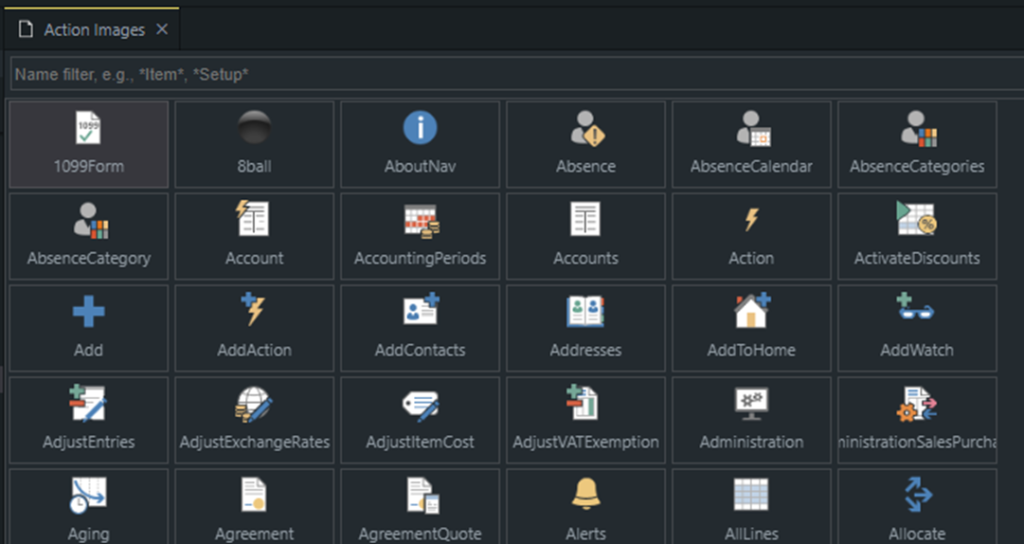
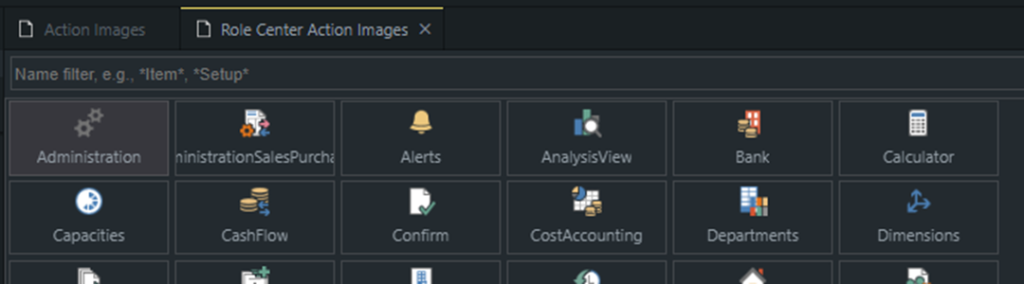
- Action images gallery: Browse and pick action icons without guesswork.

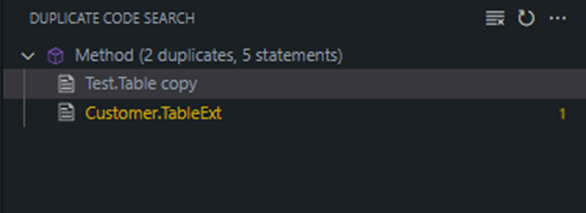
- Duplicate code search: Find copy-paste candidates for refactoring.

- Analyzers rules view: Explore rule IDs and titles to tailor your ruleset.


-
What you get from it:
- Fewer nitpicks in PRs: The tool does the nagging.
- Cleaner diffs: Consistent sorting and formatting.
- Faster UI polish: Captions, tooltips, and images don’t slow you down.
-
Use it when:
- You want a reliable “Fix on Save.”
- You’re prepping code for review and want to minimize noise.
AL Object ID Ninja
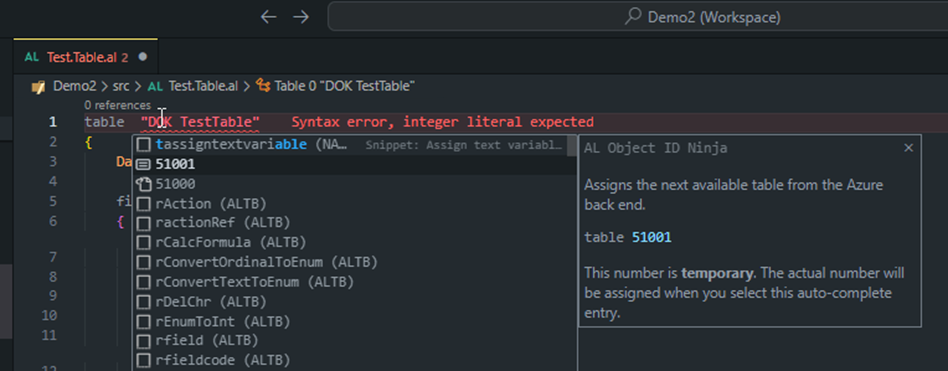
ID assignment without spreadsheets or guesswork.

-
What it does:
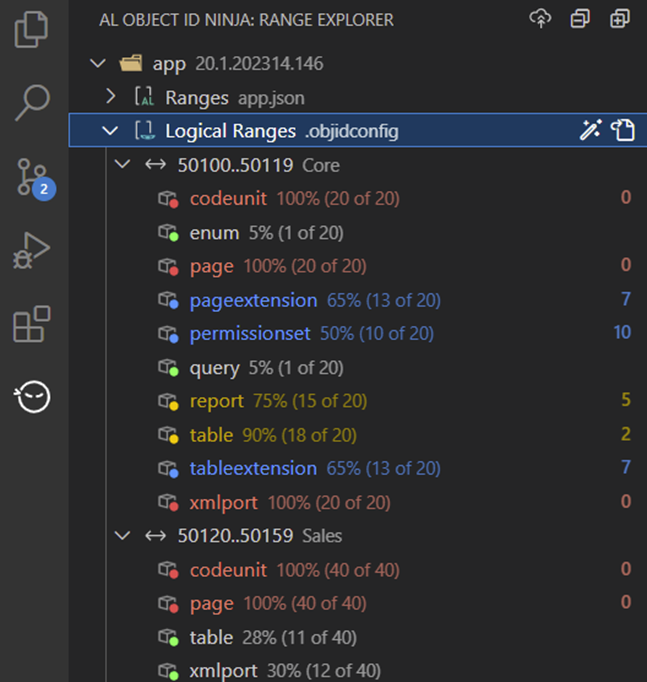
- Auto-assign free IDs: From an Azure-backed pool per range.
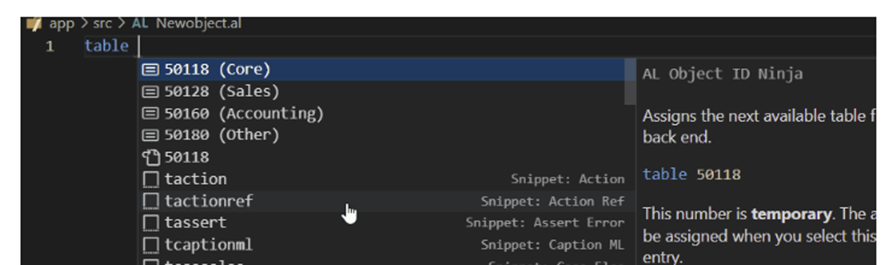
- Sub-range management: Separate Core, Sales, etc., per app.
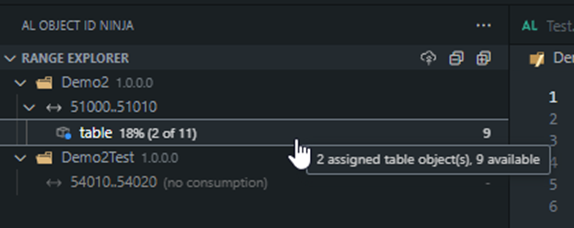
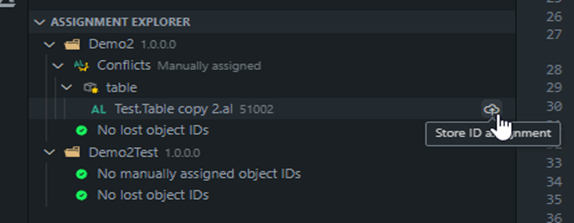
- Sync and conflict detection: Warns on collisions, shows consumption stats, and notifies when teammates assign IDs.
-
What you get from it:
- No collisions: Safe in multi-dev setups.
- Predictability: See what’s left across ranges before you hit the ceiling.
-
Use it when:
- You’re scaling the app with multiple devs.
- You want a real-time view of range health.
ALGet
Keep symbols under control.

-
What it does:
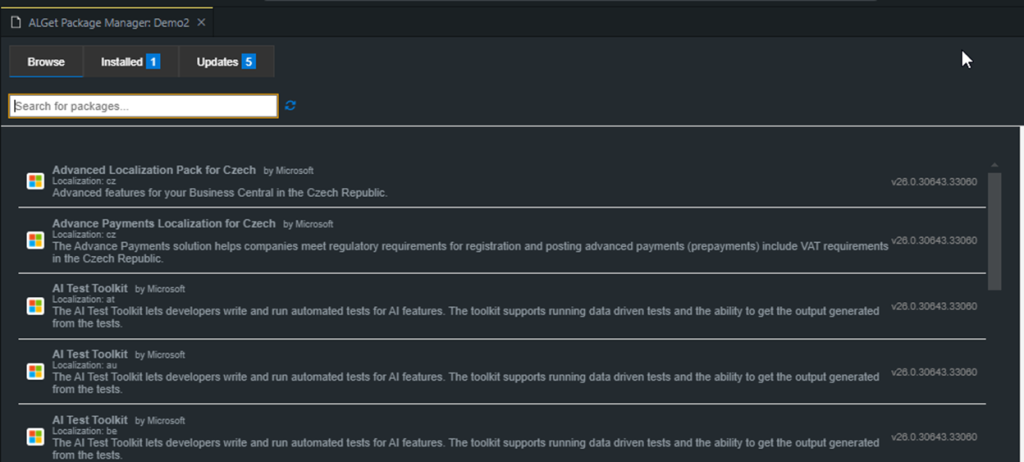
- Manage packages: Browse, install, and update Microsoft/AppSource symbols.
- Fetch symbols intentionally: You choose what goes into your .alpackages.
-
What you get from it:
- Repeatability: Stable builds with predictable dependencies.
- Focus: Only pull what you need.
-
Use it when:
- You’re onboarding a new environment.
- You need symbols for testing, localization, or specific base features.
AL CodeActions
Refactorings you’ll actually use mid-flow.
- What it does:
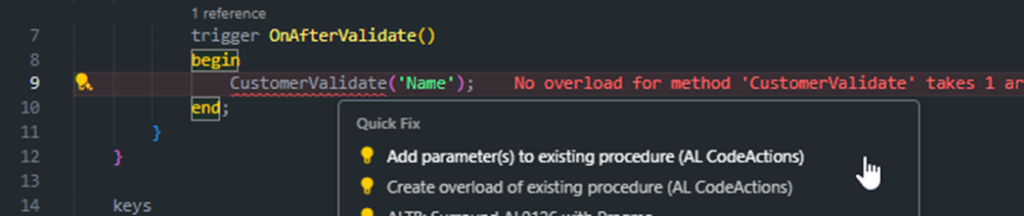
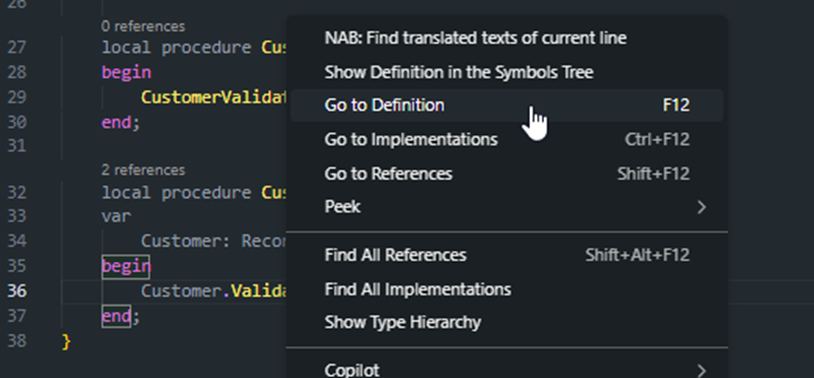
- Create missing procedures: From usage to definition in one action.
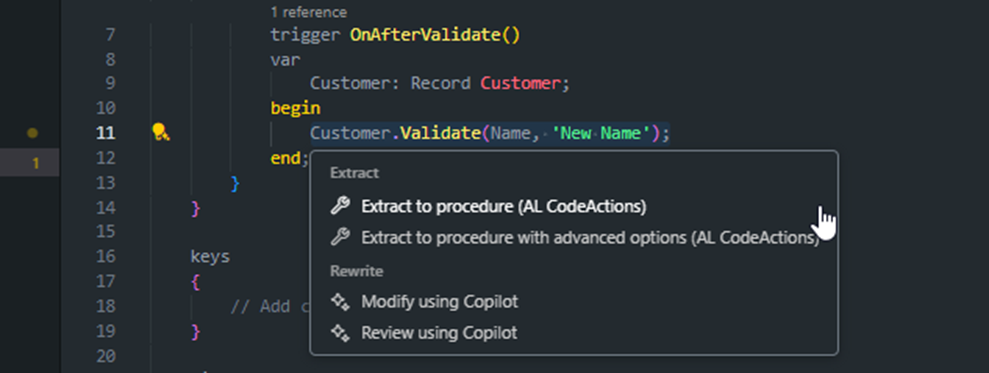
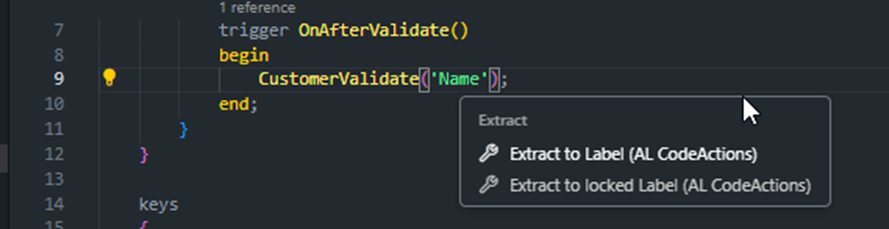
- Extract to procedure/label: Clean up quickly without losing context.
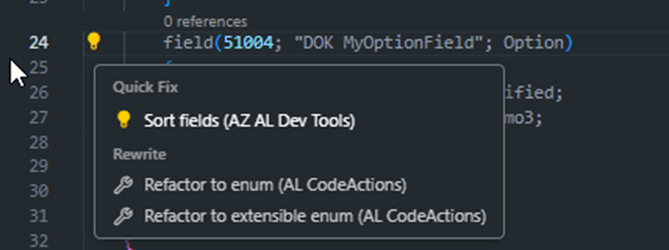
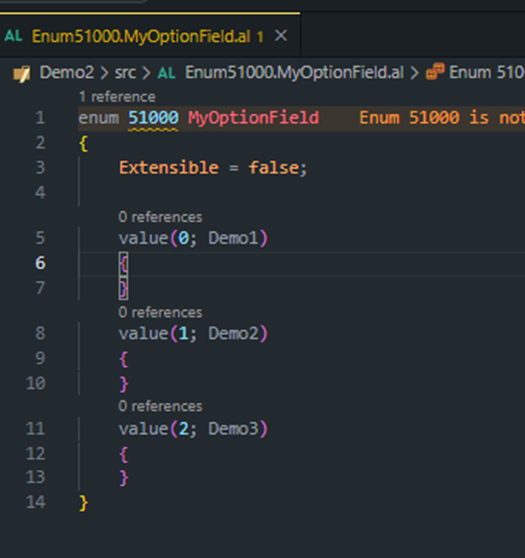
- Refactor option to enum: Convert legacy Option fields to real enums (including extensible).

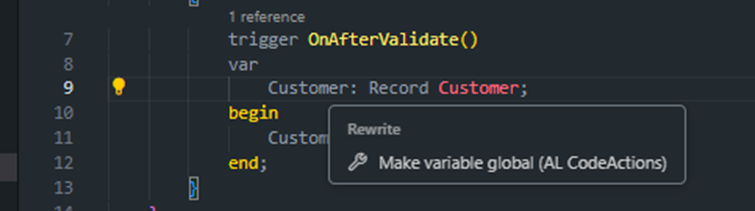
- Make variable global: Promote locals when you need broader scope.
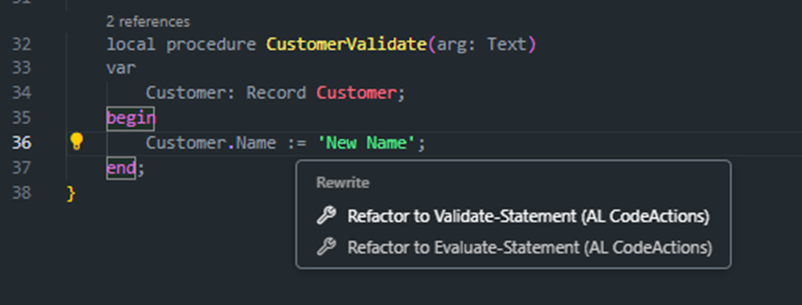
- Refactor Validate/Evaluate: Swap assignment for proper Validate or parse with Evaluate.
-
What you get from it:
- Momentum: You refactor without breaking your typing rhythm.
- Safer changes: Fewer manual edits, fewer mistakes.
-
Use it when:
-
You’re iterating fast and want the IDE to do the tedious bits.
BusinessCentral.LinterCop (+ CodeCop, UICop, AppSourceCop)
Opinionated, helpful linting for real-world AL.
-
What it does:
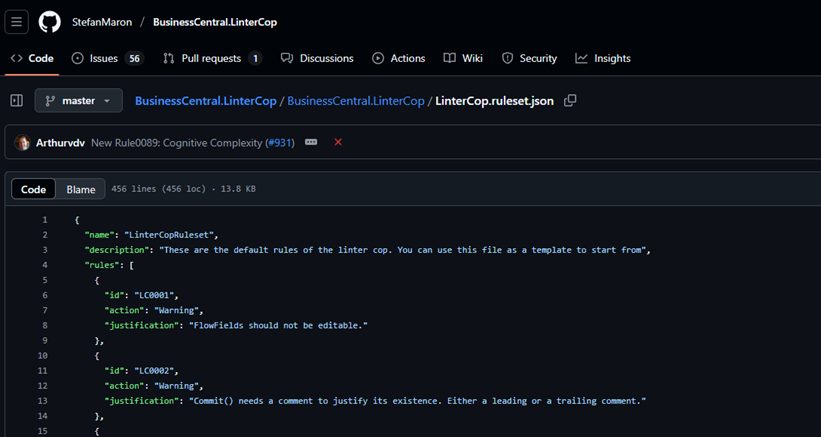
- Rules for maintainability: FlowFields not editable, Commit() must be justified, cognitive complexity checks, etc.
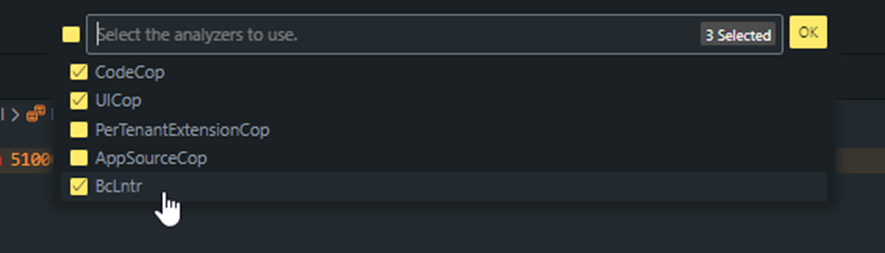
- Complements Microsoft analyzers: Add it to CodeCop/UICop/AppSourceCop for a practical net.
-
What you get from it:
- Standards that scale: Fewer “tribal” conventions, more explicit rules.
- Better PR conversations: Talk about design, not whitespace.
-
Use it when:
- You want predictable quality signals across a team.
- You’re preparing for AppSource or simply aiming for consistency.
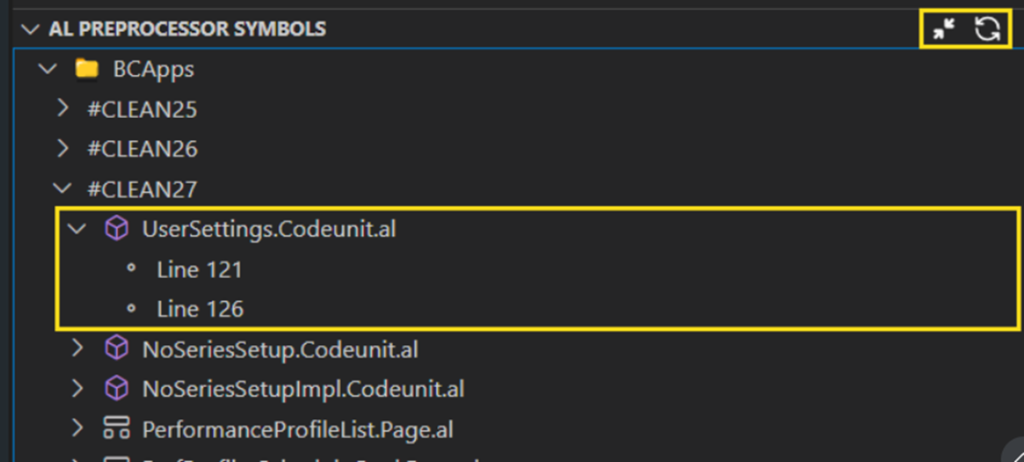
AL Preprocessor Explorer
Make conditional compilation visible and manageable.
-
What it does:
- Symbol discovery: See active symbols across the workspace.
- Navigation: Jump to code regions that depend on symbols like CLEAN25/26/27.
-
What you get from it:
- Confidence: You know what compiles in which build.
- Fewer surprises: Conditional code paths are explicit.
-
Use it when:
- You target multiple platform versions or SKUs.
- You guard features behind symbols for CI/CD.

Settings that quietly improve your day
Drop these into your settings and forget about them—they’ll just help.
{
  // Save behavior
  "files.autoSave": "onFocusChange",

  // Code hygiene that runs itself
  "alOutline.codeActionsOnSave": [
    "SortProcedures",
    "SortProperties",
    "SortReportColumns",
    "SortVariables"
  ],

  // Smarter completion
  "alOutline.completionProviders": [
    "VariableNamesWithType",
    "VariableDataTypes"
  ],

  // Faster compiles on decent hardware
  "al.compilationOptions": {
    "parallel": true,
    "maxDegreeOfParallelism": 8
  }
}
A couple of notes:
- Auto Save: Keeps you from losing work and makes background tools fire more often.
- Fix on Save: Let the formatter sort noise so PRs focus on logic.
- Compilation: If you’ve got the cores, use them.
Shortcuts and micro-habits that add up
-
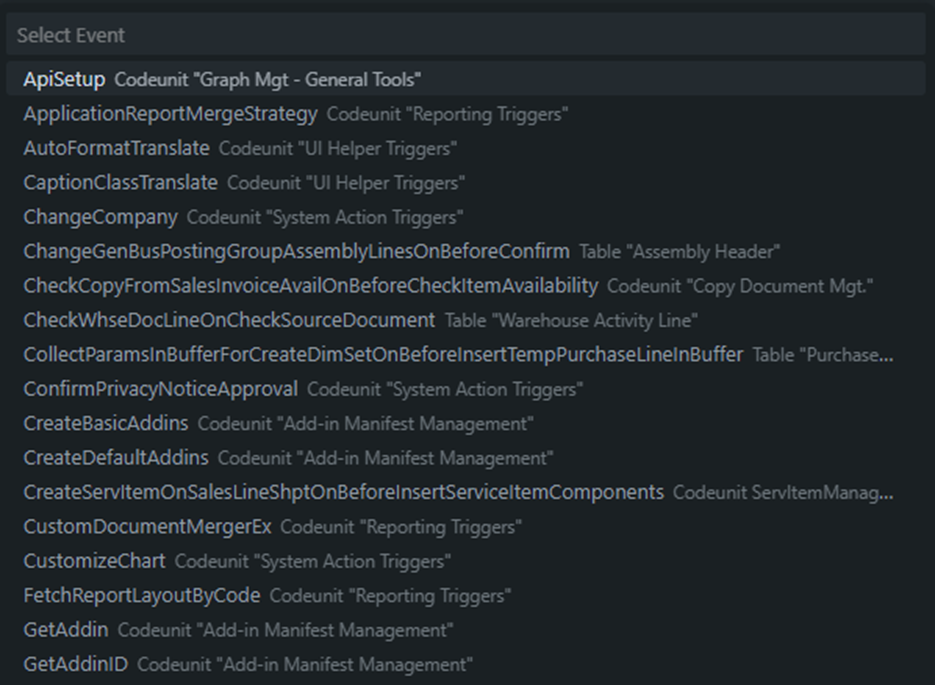
Adding event subscribers:
- Shortcut: Alt + Shift + E
- Why: Cuts the ceremony of wiring up subscribers; lets you focus on the handler logic.
-
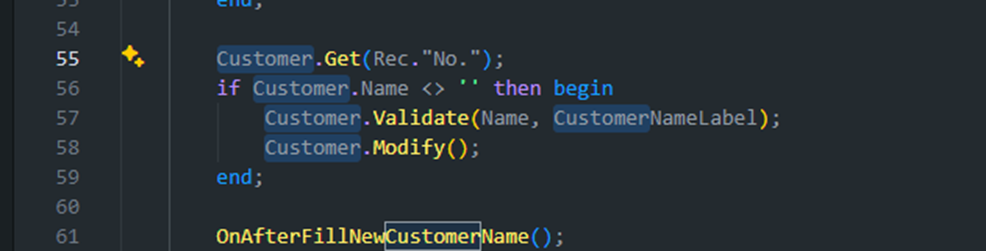
Multi-cursor and quick edits:
- Duplicate/select next occurrence: Ctrl + D
- Move lines: Alt + Up/Down
-
Delete line: F4
-
Why: These replace a lot of mouse work and reduce context switches.
-
Action images without guessing:
- Use AZ AL Dev Tools’ action images gallery to find proper icons for actions, cue groups, and role centers.
- Why: No more back-and-forth remembering icon names.
-
Case statements you won’t forget to finish:
- AZ AL Dev Tools can add missing case lines based on an enum or option.
- Why: Fewer runtime edge cases.
Code quality that doesn’t fight you
Use analyzers and cleanup to create a baseline your team can live with.
-
Analyzers to enable:
- CodeCop, UICop, AppSourceCop: The core set.
- LinterCop: Practical, team-friendly rules (commit justification, complexity, FlowFields, permissions checks).
-
Cleanup passes worth running:
- Fix identifiers/keywords case
- Remove unused variables/usings
- Remove WITH
- One statement per line
- Convert object IDs to names (for readability in reviews)
- Add captions/tooltips/application areas (UI work goes faster with these ready)
-
Duplicate code search:
- Use AZ AL Dev Tools to find repeated patterns.
- Refactor into shared procedures or codeunits and add tests where it matters.
Most teams don’t need more discipline—they need guardrails that make the right thing the easy thing. This setup makes IDs automatic, formatting consistent, refactors quick, and rules visible. Start by enabling Fix on Save, add AL Object ID Ninja, and wire up AZ AL Dev Tools. Then tighten with LinterCop and the rest as your team settles in.
If you want, I can expand this with screenshots from the session, before/after diffs, and a lightweight ruleset.json you can drop into your repo.